
Step 1
Start from the dashboard
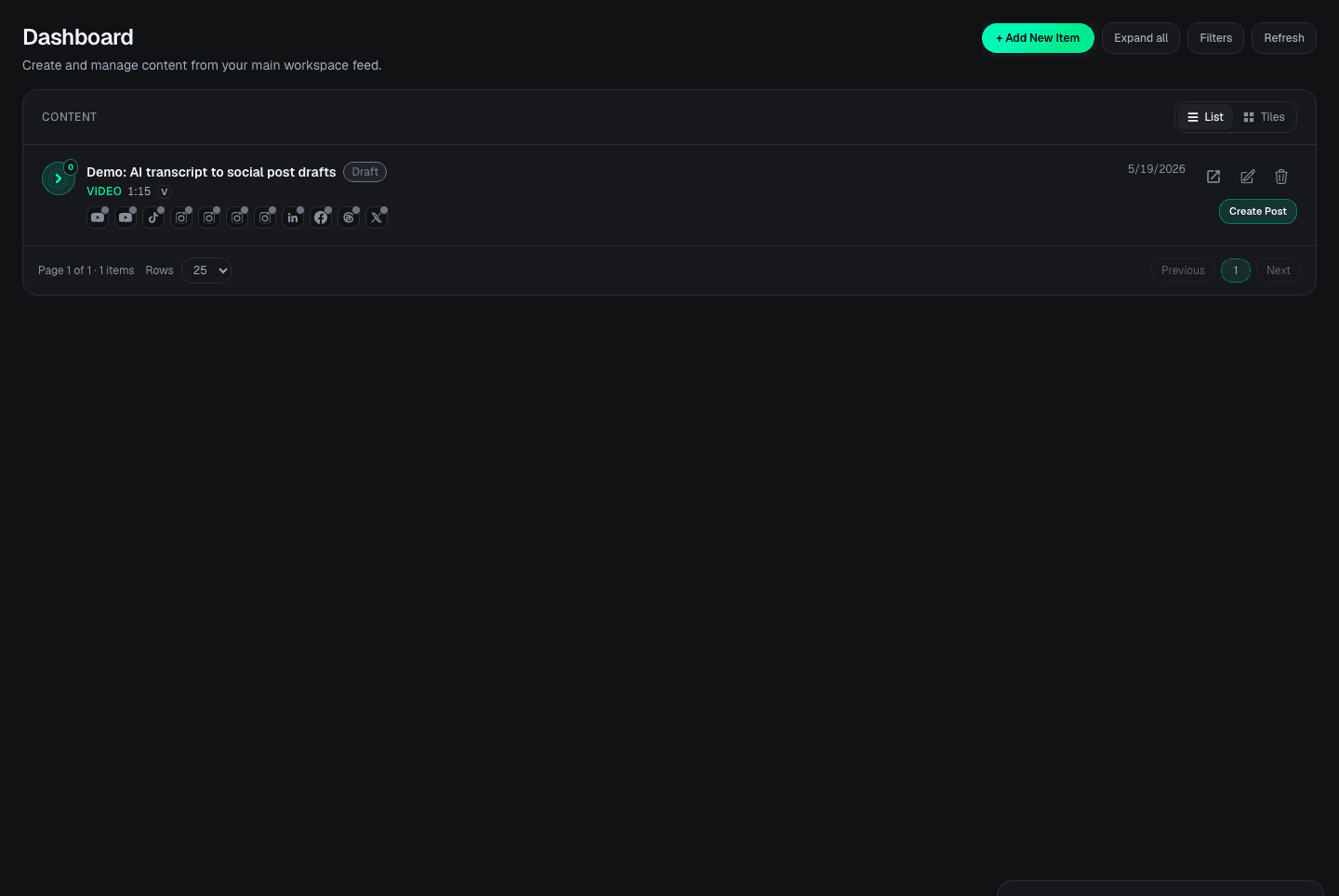
Open your Doro dashboard and start a new content workflow from the content feed.
AI content workflow tutorial
Learn how to turn one source video into organized, reviewable social content in Doro. Create the item, use AI transcription when your account has access, then generate platform-specific drafts from the transcript.
Before you start
You need a Doro account, a video file, and AI transcription access if you want Doro to create the transcript automatically.
What you will create
A content item with source details, transcript workflow, generated drafts, notes, hashtags, todos, and status tracking.
Important accuracy note
Generated copy is a draft. Review the transcript, hook, caption, links, and status before publishing anywhere.
Step 1
Open your Doro dashboard and start a new content workflow from the content feed.
Step 2
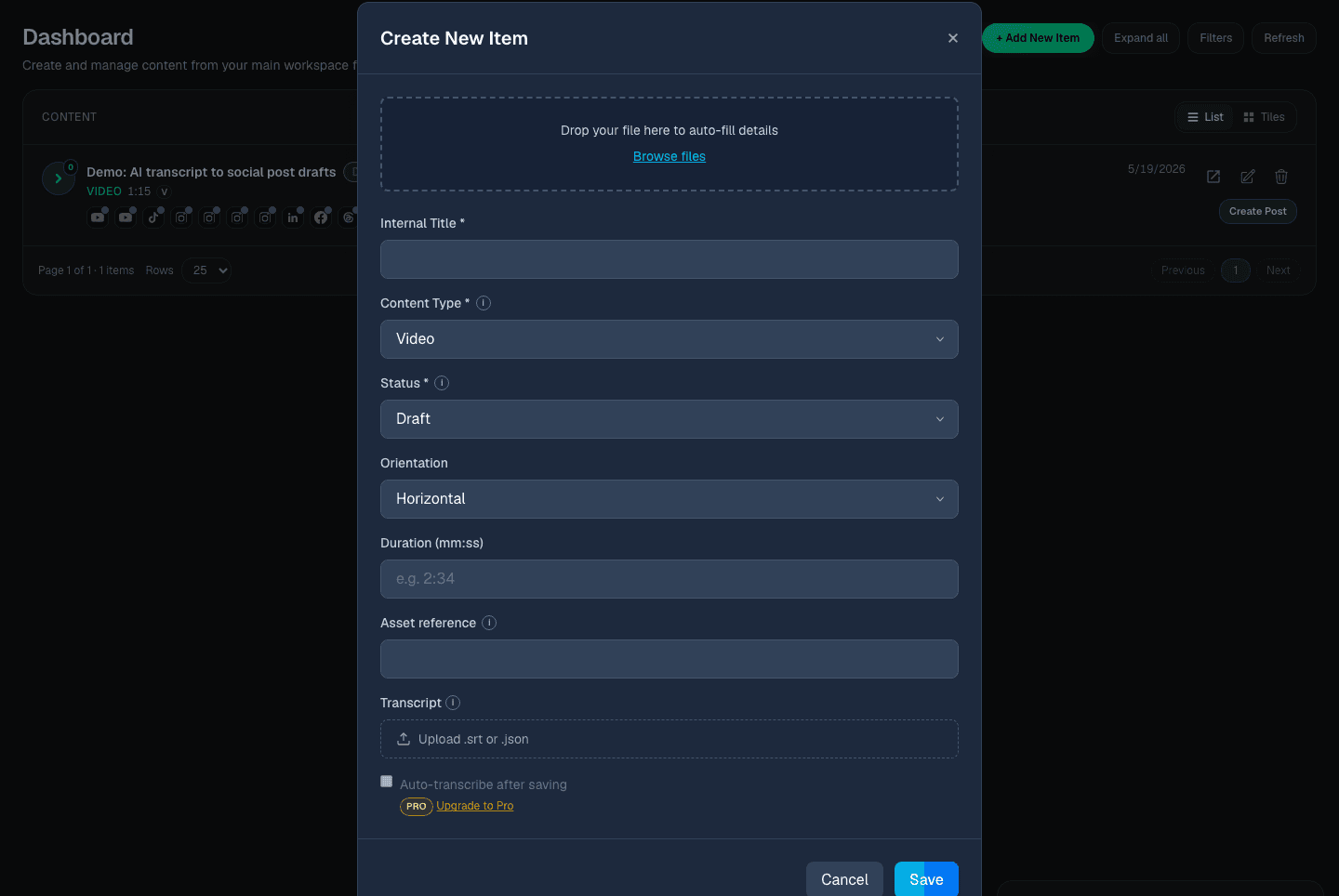
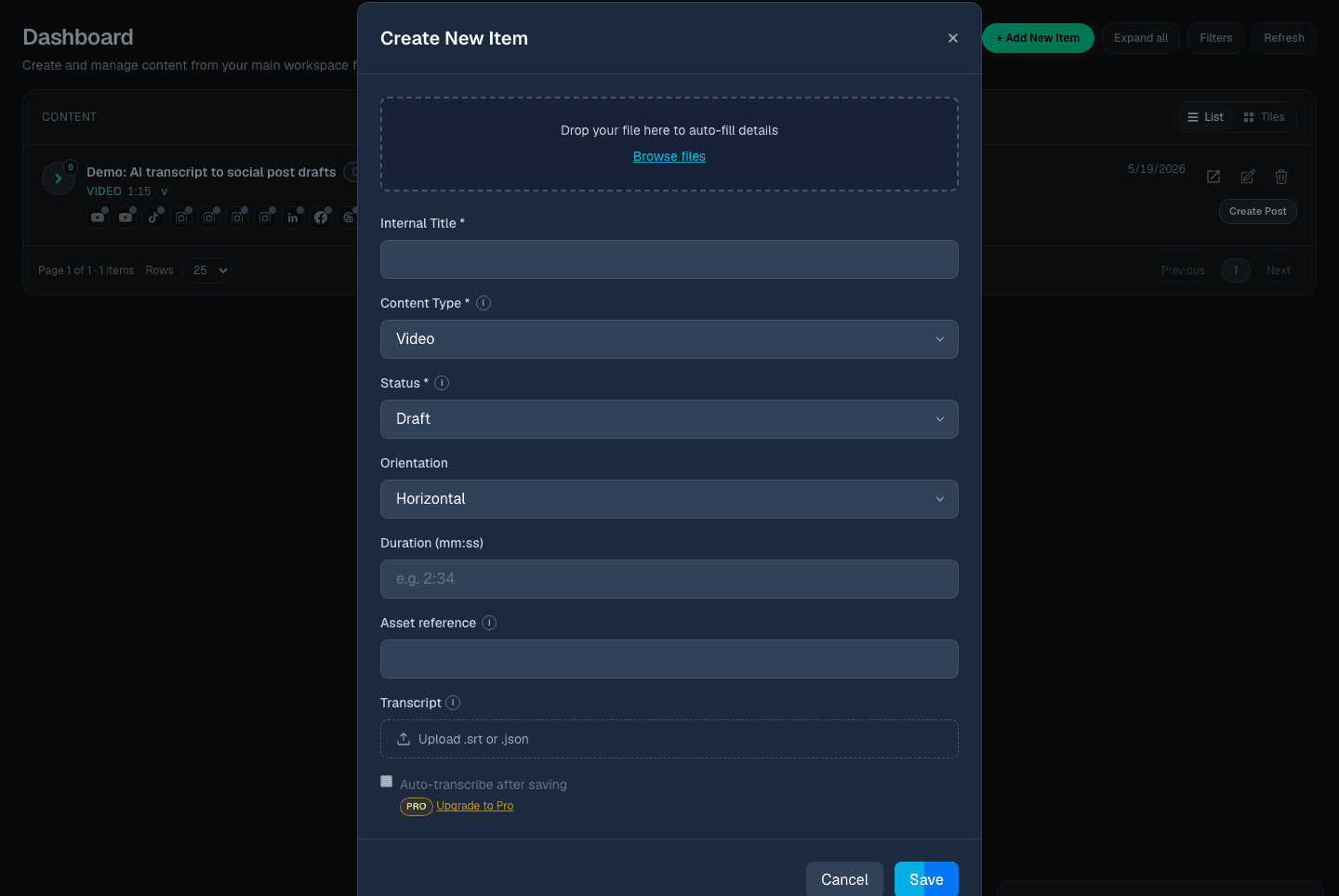
Choose the content type, status, orientation, duration, and source asset details so the item becomes the home for the whole workflow.
Step 3
If your account has AI transcription access, enable auto-transcribe during upload. If not, Doro shows the current access state so the workflow stays honest.
Step 4
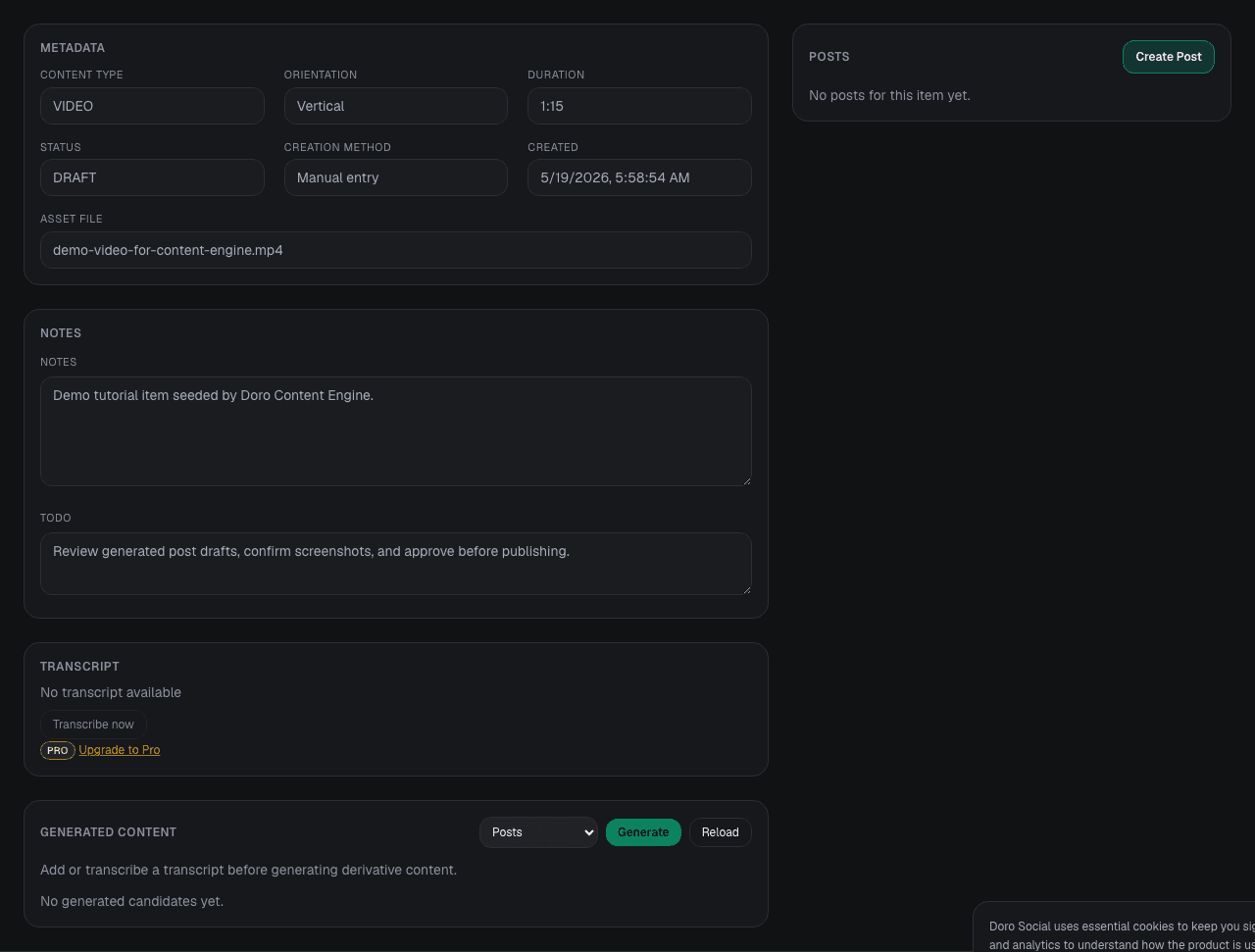
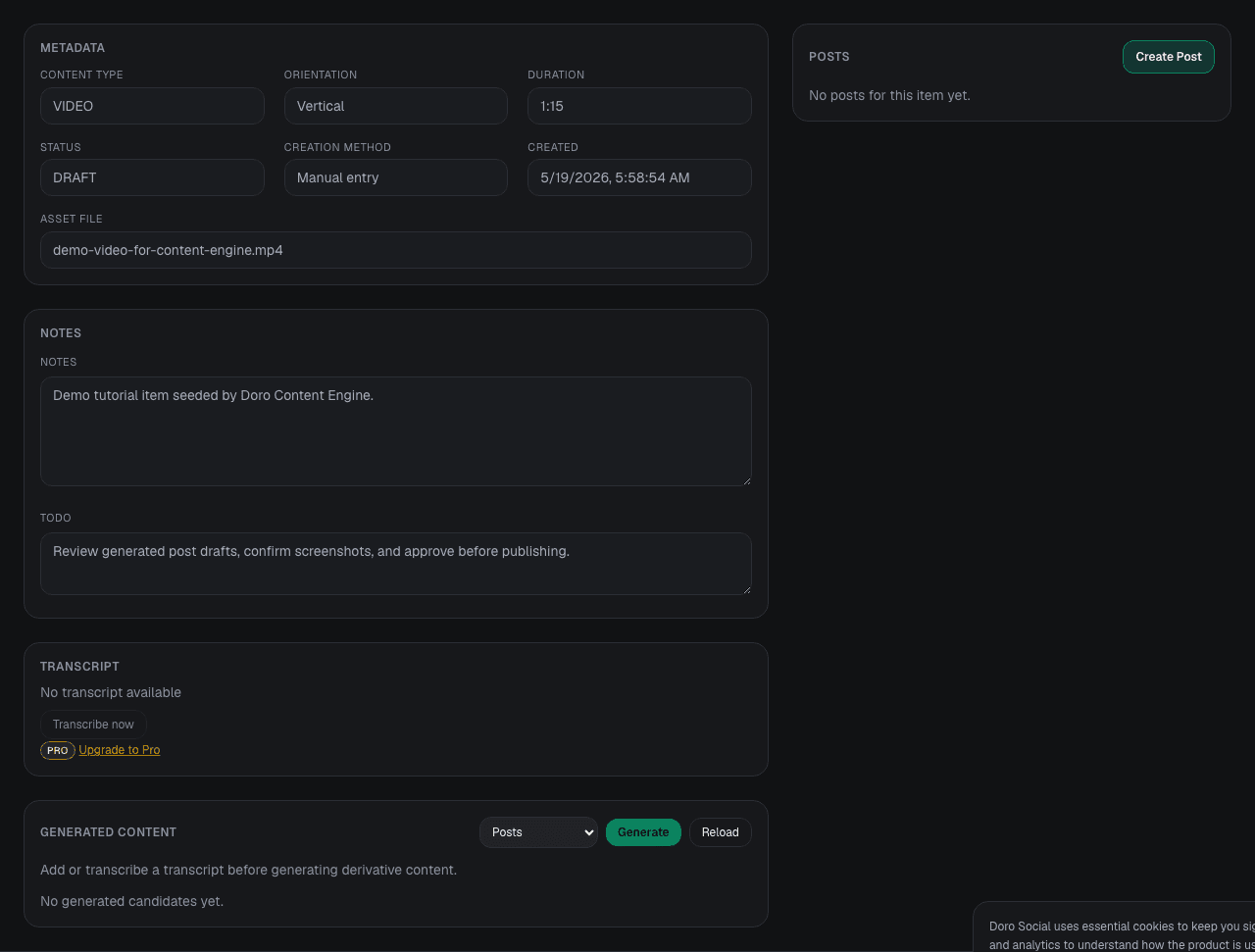
After saving, open the content item. The video metadata, notes, todos, transcript area, generated content, and posts live together.
Step 5
Use the transcript as the source for titles, hooks, captions, and descriptions. DoroSocial keeps AI output as reviewable drafts, not blind autopublishing.
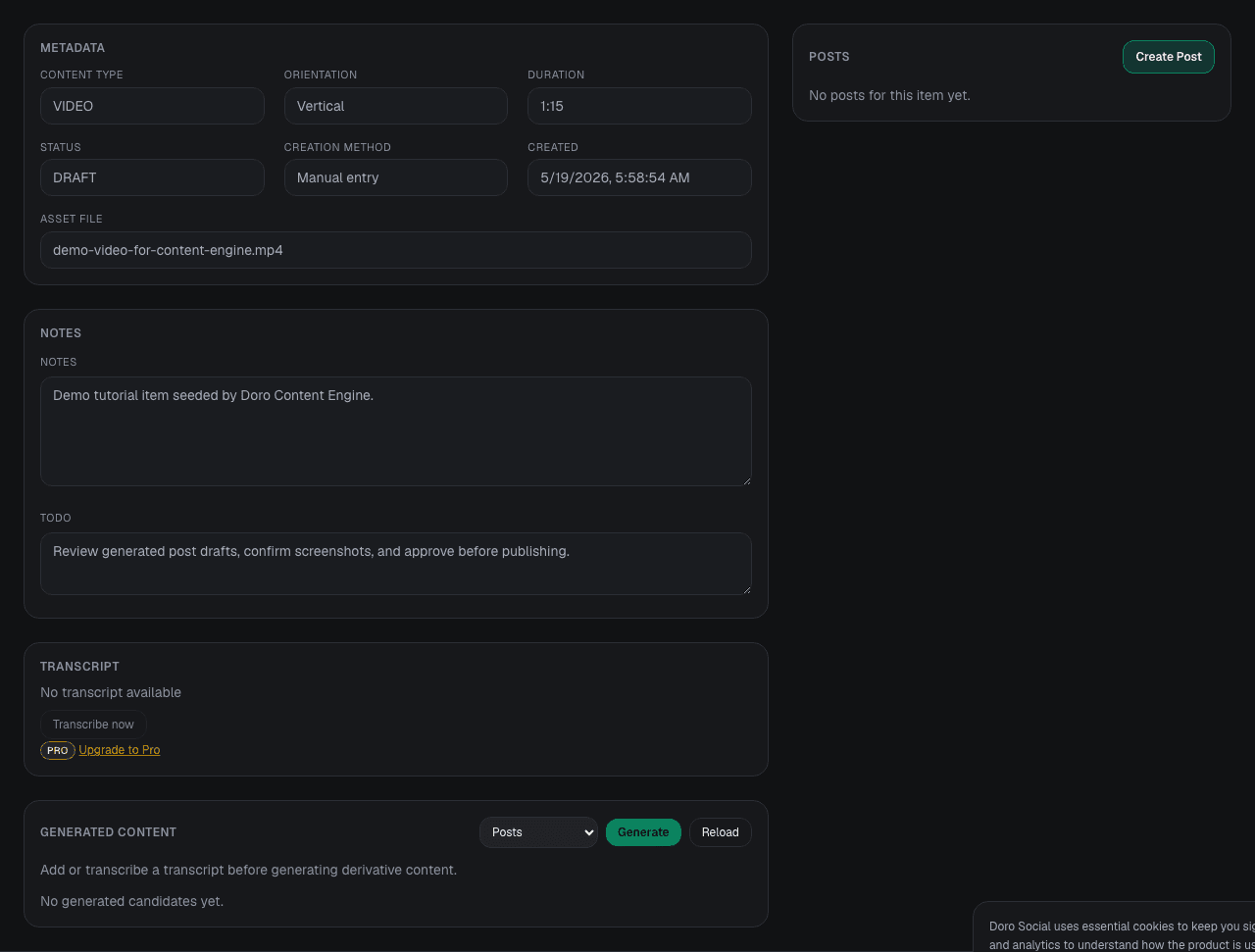
Step 6
Check the generated copy, add notes, hashtags, links, and status updates, then move the item toward publish-ready.
No. Generated content should be reviewed. Broader one-click publishing is expanding over time and depends on account access and platform support.
AI transcription depends on plan, credits, and account access. The app shows the current access or upgrade state in the workflow.
Start with one video, generate the transcript, then create platform-specific drafts you can review before publishing.