
Step 1
Open your dashboard
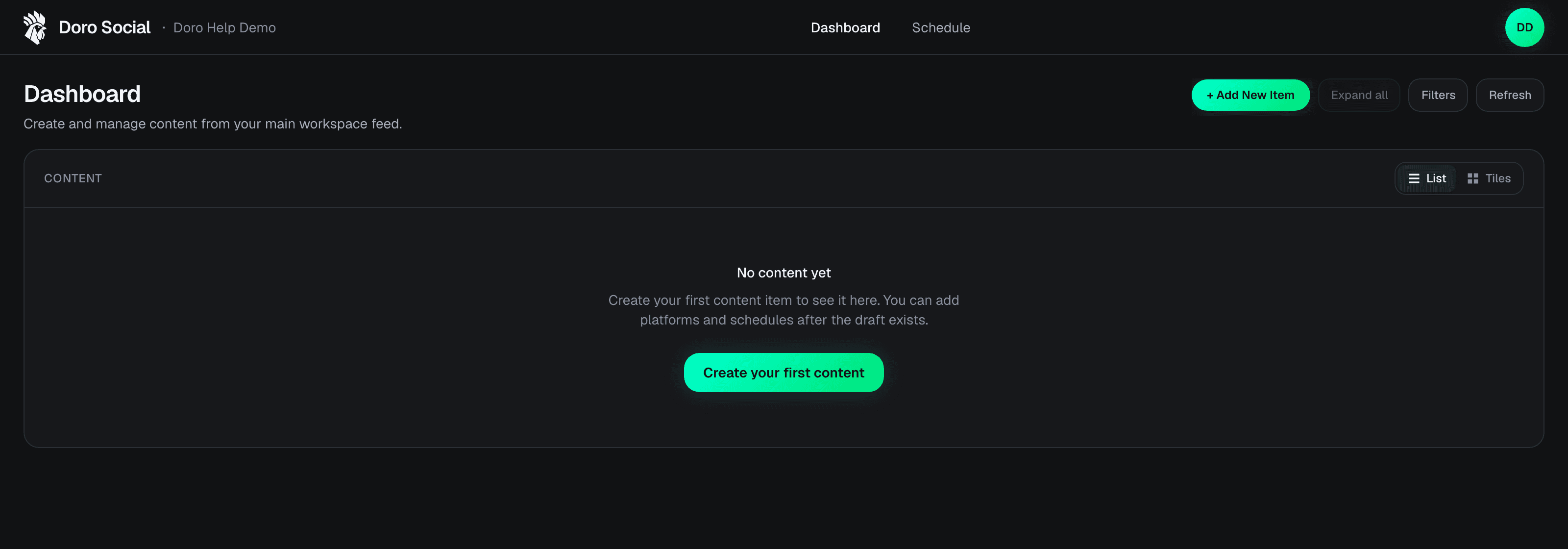
Log in to DoroSocial and open your dashboard.
Social integrations tutorial
Connect the accounts you want to publish to, choose the right brand, and confirm each channel is ready before creating platform posts or schedules.
Before you start
You need a DoroSocial account and access to the social account you want to connect.
Free accounts
Free users can connect up to 3 channels.
Pro accounts
Pro users can connect all supported channels and manage multiple brands.
Step 1
Log in to DoroSocial and open your dashboard.
Step 2
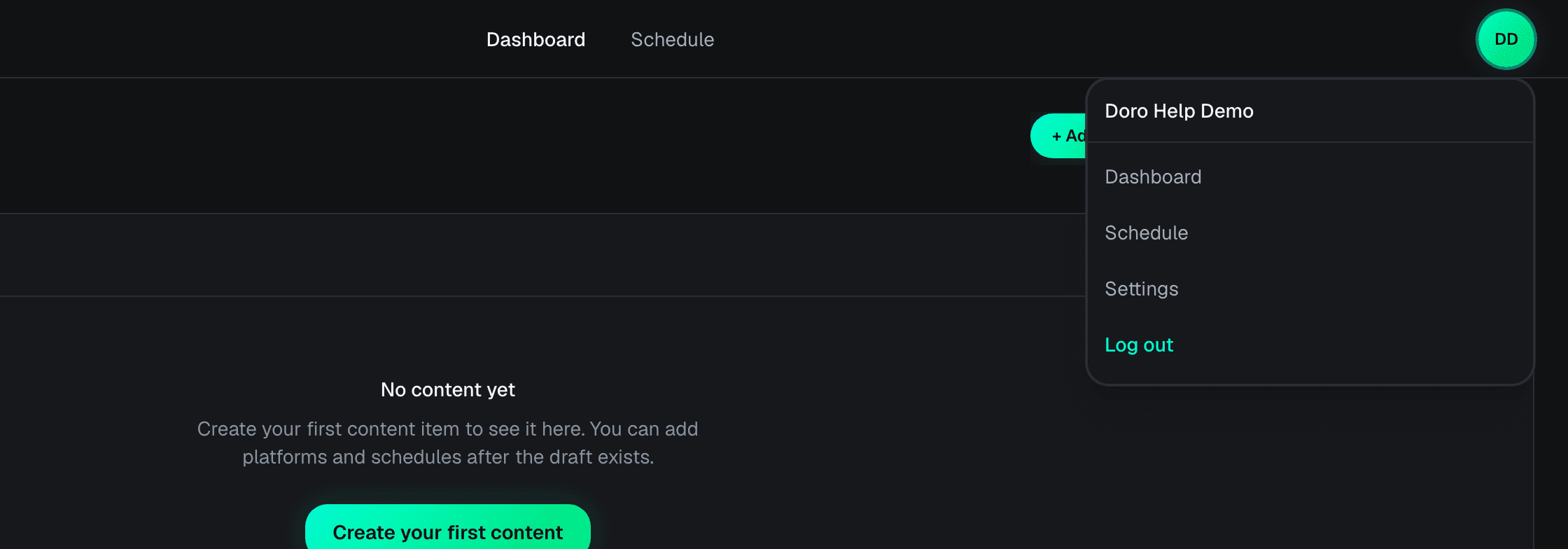
Click the account menu, then choose Settings.
Step 3
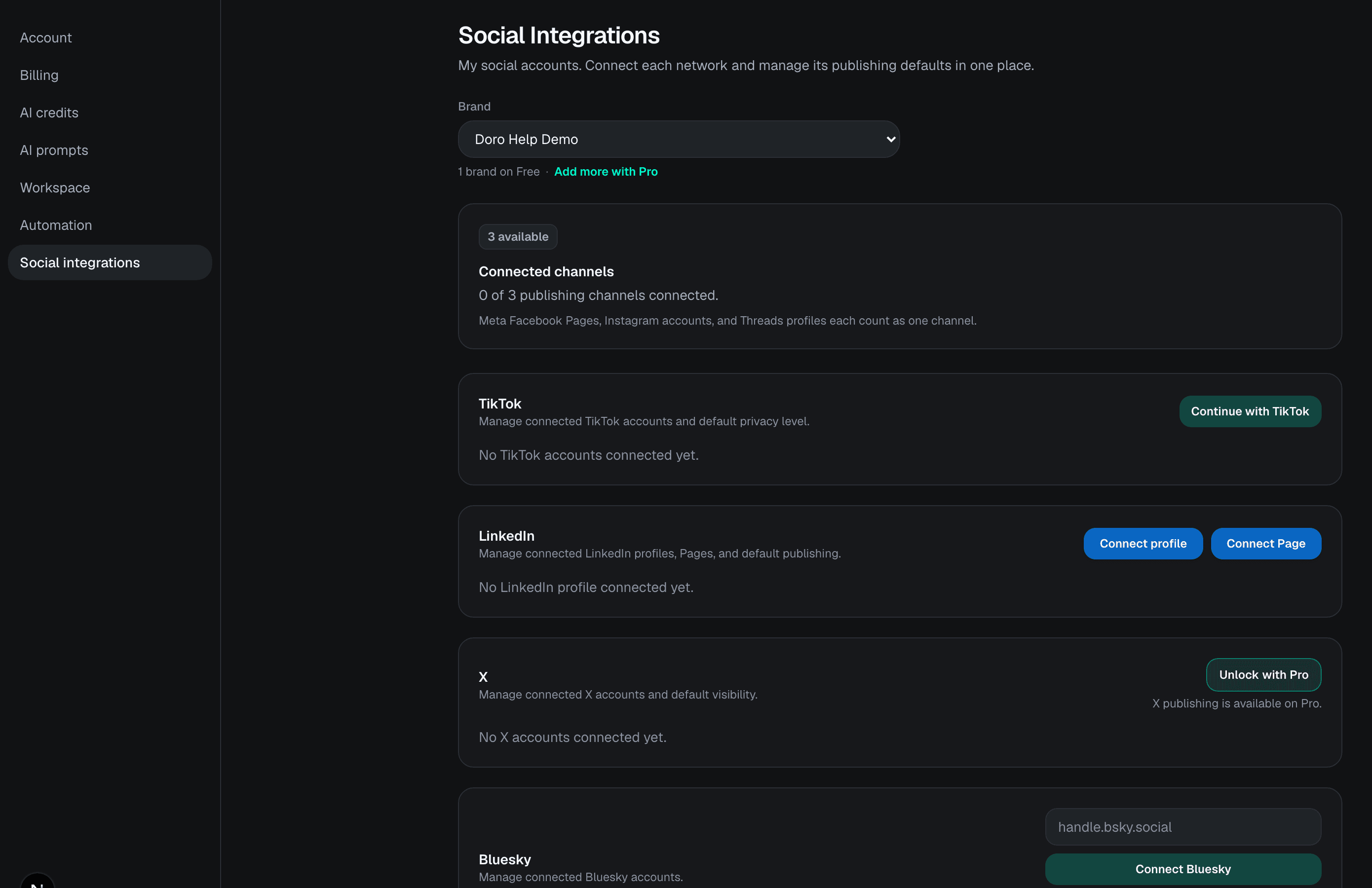
In Settings, choose Social integrations. This is where DoroSocial shows your available platforms, brand selector, and connected-channel limit.
Step 4
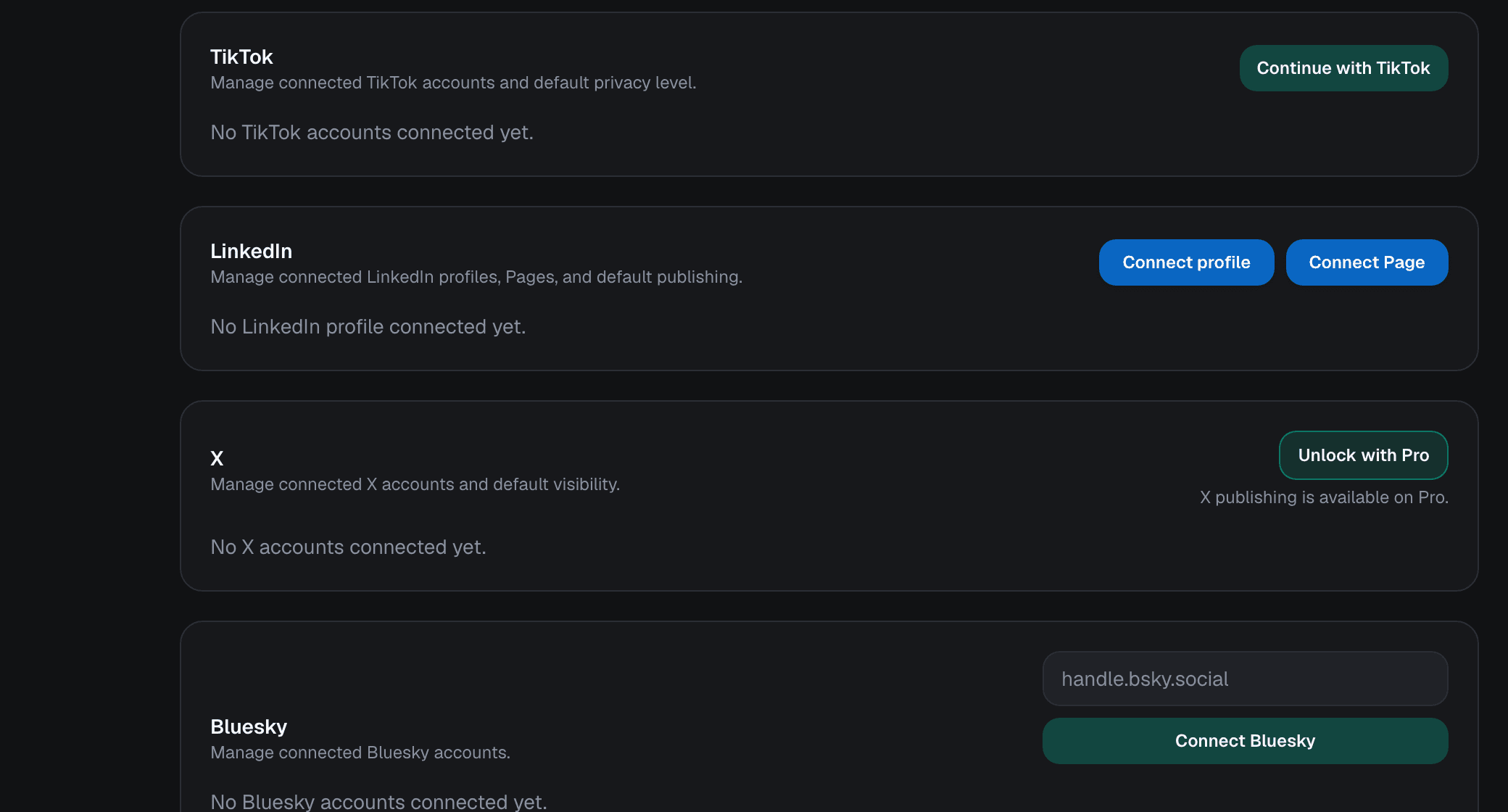
Choose the platform you want to connect and click its connect button. Facebook, Instagram, and Threads use Meta authorization, so the platform may ask for related permissions.
Step 5
The social platform may open an authorization screen. Review the requested permissions and approve access if you want DoroSocial to publish or manage that account.
External authorization screen
This screen belongs to the social platform, not DoroSocial. It can look different depending on the account, permissions, and platform.
OAuth
Approve access on the social platform
The exact authorization screen depends on YouTube, TikTok, Meta, LinkedIn, X, or Bluesky.
Step 6
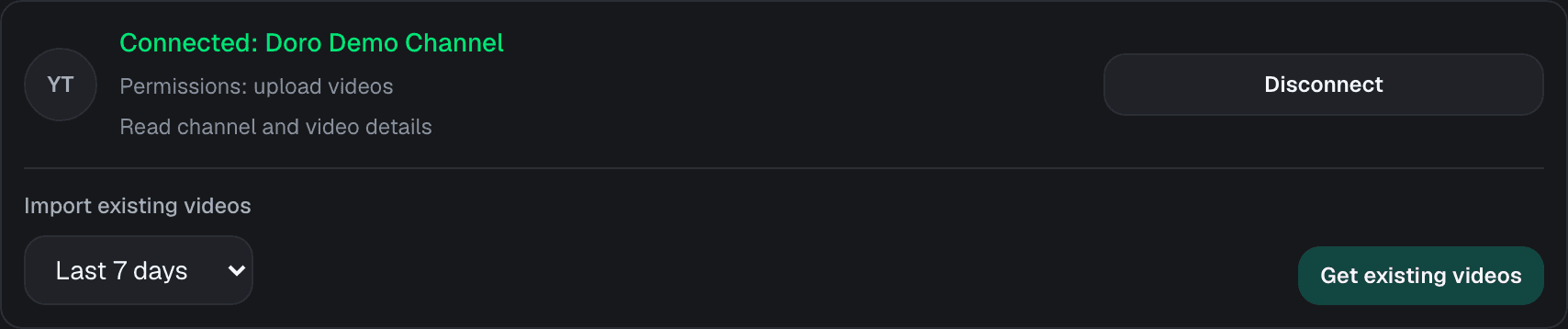
After authorization, return to Social integrations and confirm the account appears under the correct platform. You can disconnect or remove stored data later from this page.
The platform may not be enabled for your plan, account, or current launch access.
Free accounts have a limited number of connected channels. Upgrade to Pro if you need more.
Use Disconnect for that platform account, then connect the correct account.
Open Social integrations, choose your brand, and connect the platforms you want to publish to.