Doro Social Help

Troubleshooting tutorial

Re-upload expired source media in DoroSocial

If DoroSocial says the source media is deleted, expired, or unavailable, upload the source video again before publishing or scheduling video posts.

This guide is for existing content items that already have metadata, transcript text, or platform drafts. If you are creating a new item, start with Create your first content item.

Deleted badgeReplace sourceDrafts preservedPublish again

Your work is not lost

The source file can expire while the item, transcript, notes, and draft posts remain.

Video actions need the file

Previewing, transcription, publishing, and scheduling video posts need available media.

Replace, then continue

Upload the source again and continue from the same content item and drafts.

Step 1

Check the Asset file row

Open the content item. If the original uploaded video has passed its retention window, DoroSocial keeps the item, transcript, notes, and post drafts, but the Asset file row shows a Deleted badge and a Replace source action.
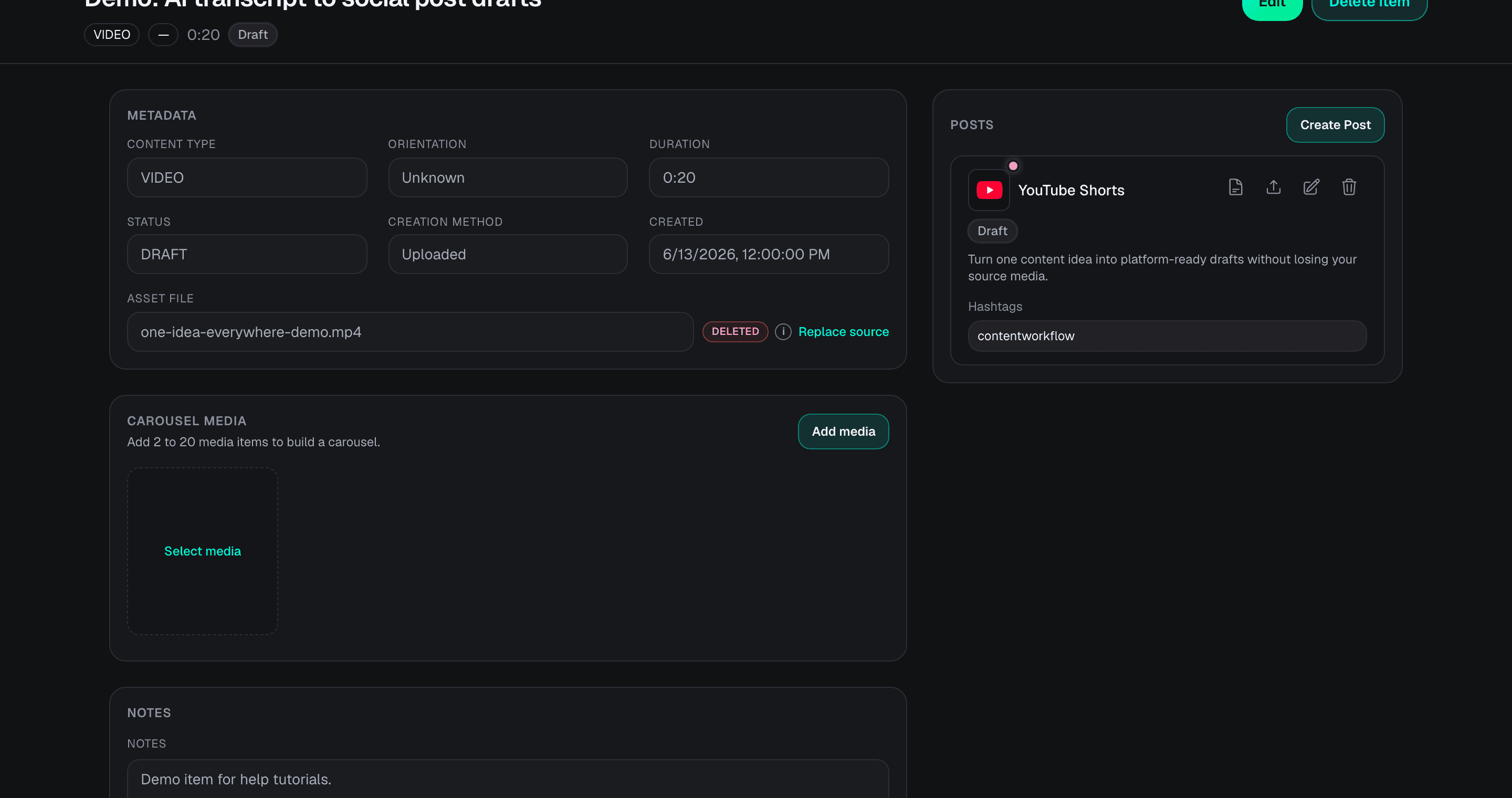
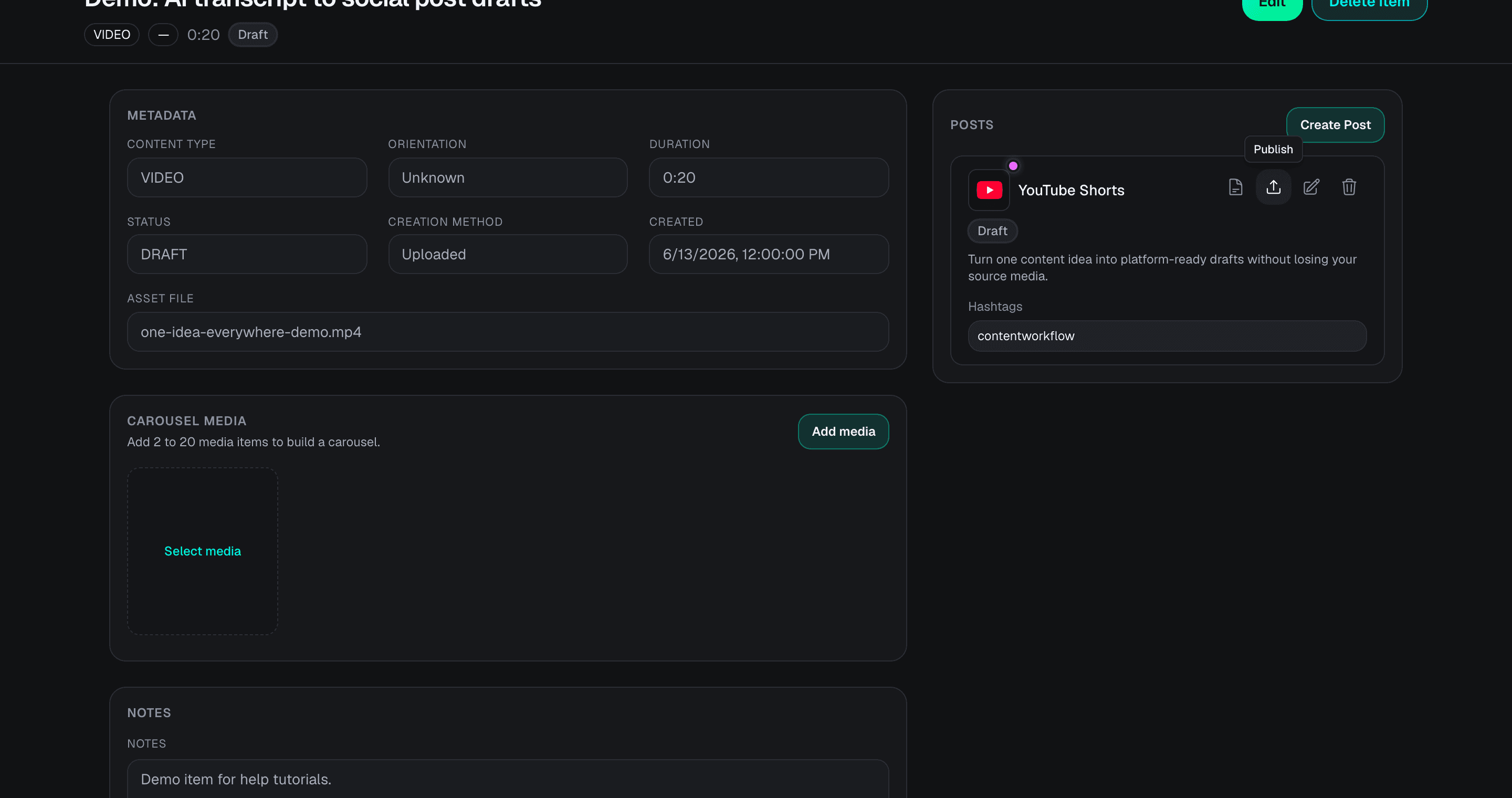
DoroSocial content detail page showing a Deleted source media badge and Replace source action.
The Deleted badge means the stored master video is no longer available. Your item and draft posts still remain in DoroSocial.

Step 2

Replace the source before publishing

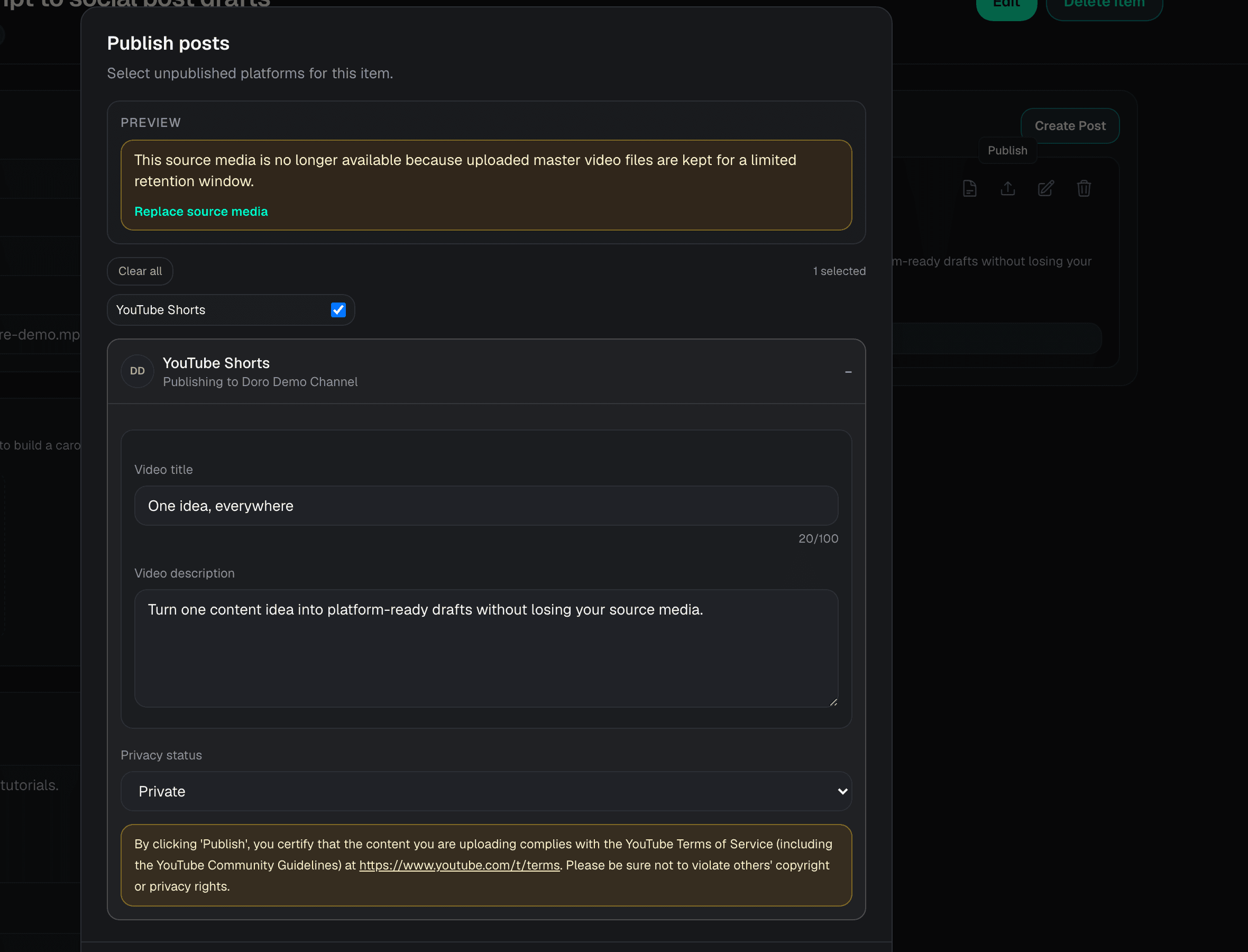
Video posts need the source media at publish time. If you open the publish modal while the source is missing, DoroSocial blocks publishing and shows Replace source media. Click it and choose the original video file from your computer.

The file picker itself is opened by your browser or operating system, so it is not shown in this tutorial.

DoroSocial publish modal showing source media unavailable warning and Replace source media action.
The publish modal blocks posting until the missing source video is uploaded again.

Step 3

Confirm the source is available again

After the replacement upload finishes, the Deleted badge is gone. You can transcribe, preview, publish, or schedule again using the existing item and platform drafts.

DoroSocial content detail page after source media is available again.
When the source is available, the Asset file row returns to the normal state and publishing can continue.

What stays saved

Replacing source media does not reset the content item

Still saved

DoroSocial keeps the item title, status, notes, todo, transcript, hashtags, external links, and platform post drafts.

Needs the source file

Video preview, transcription from the original media, publishing, and scheduling need the source media file to be available.

Questions

Common questions about expired source media

Does DoroSocial delete my whole content item when source media expires?

No. DoroSocial keeps the dashboard item, transcript, notes, metadata, and platform post drafts. The expired state only means the stored master video file needs to be uploaded again before video preview, transcription, publishing, or scheduling can use it.

Why does DoroSocial remove old source media?

Uploaded master video files are stored for a limited retention window. This keeps storage costs controlled while preserving the organized content record and reusable draft work.

Do I need to recreate my platform posts after replacing the source?

Usually no. Existing draft posts stay attached to the item. After replacing the source media, review the drafts and continue publishing or scheduling.

Which file should I upload as the replacement source?

Use the original video file or the closest matching final video. The replacement should match the draft posts you plan to publish.

Next step

After replacing the source media, return to the publish modal and publish or schedule the platform drafts you already created.