
Step 1
Open the publish modal
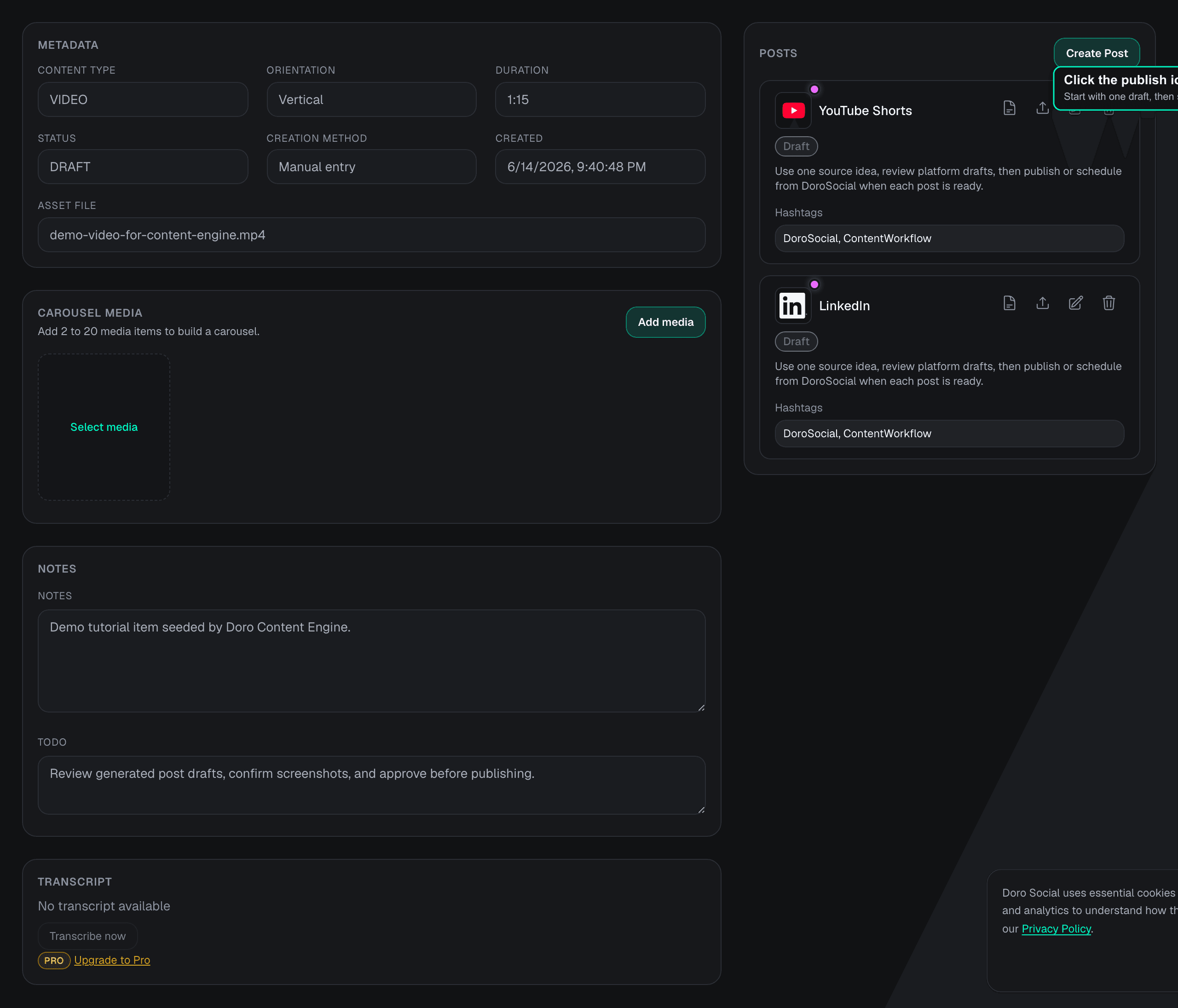
Open a content item that already has platform post drafts. In the Posts panel, click the publish icon on the draft you want to start with. DoroSocial opens the publish modal with that platform preselected.
Publishing tutorial
Use the publish modal to publish one platform draft, select multiple drafts, or schedule selected posts for later.
This guide starts after you already have platform post drafts. If you still need to create drafts first, start with Create platform-specific posts.
Start from drafts
Publish and schedule actions apply to platform post drafts, not the source content item by itself.
One modal, two actions
The same modal handles immediate publishing and scheduling after you select the drafts.
Review first
Confirm the platform, target account, visibility, media state, and schedule before saving.
Step 1
Open a content item that already has platform post drafts. In the Posts panel, click the publish icon on the draft you want to start with. DoroSocial opens the publish modal with that platform preselected.
Step 2
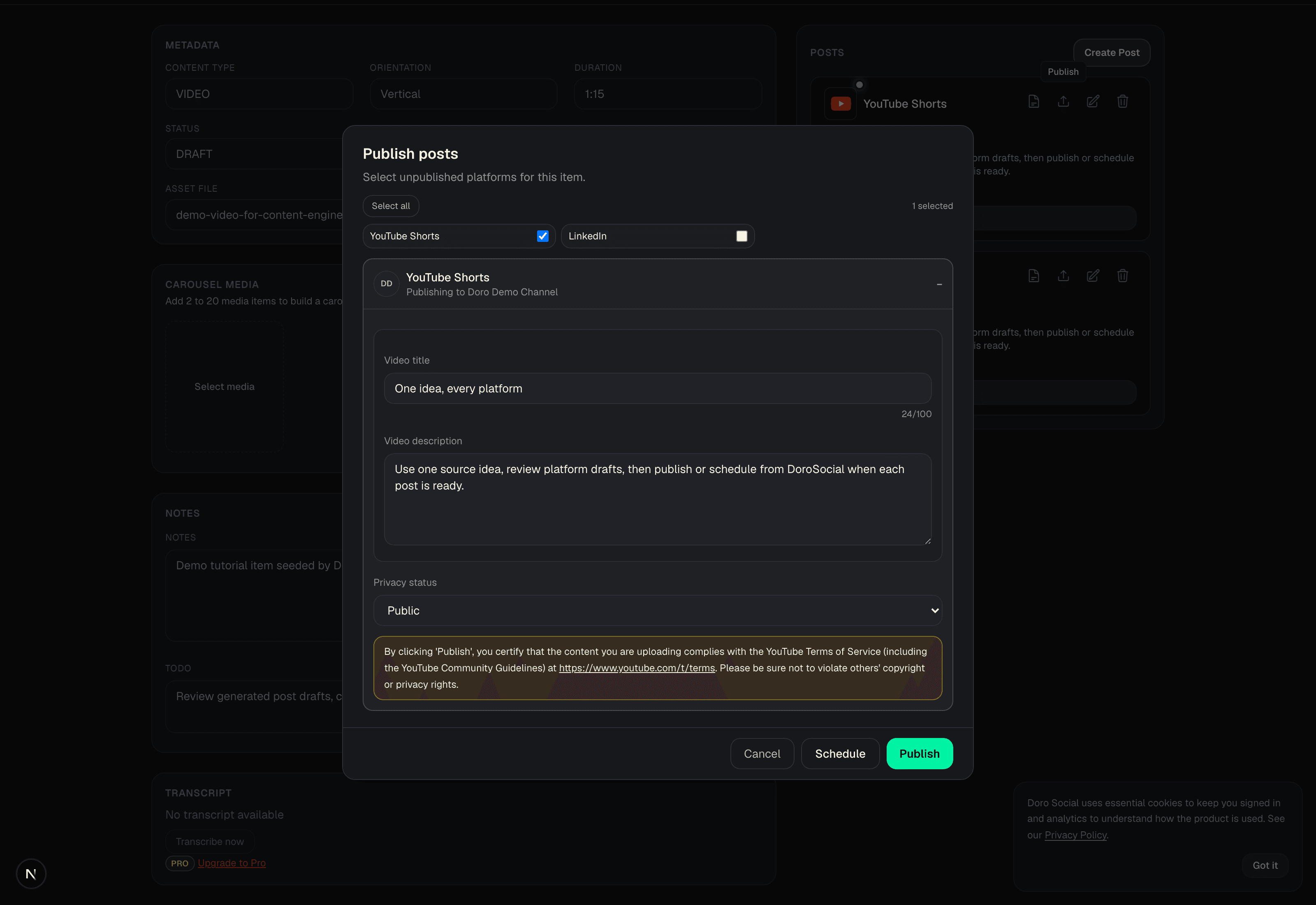
The clicked platform starts selected. Keep one platform selected if you only want to act on that draft, or use Select all to publish or schedule every unpublished draft for the item.
Step 3
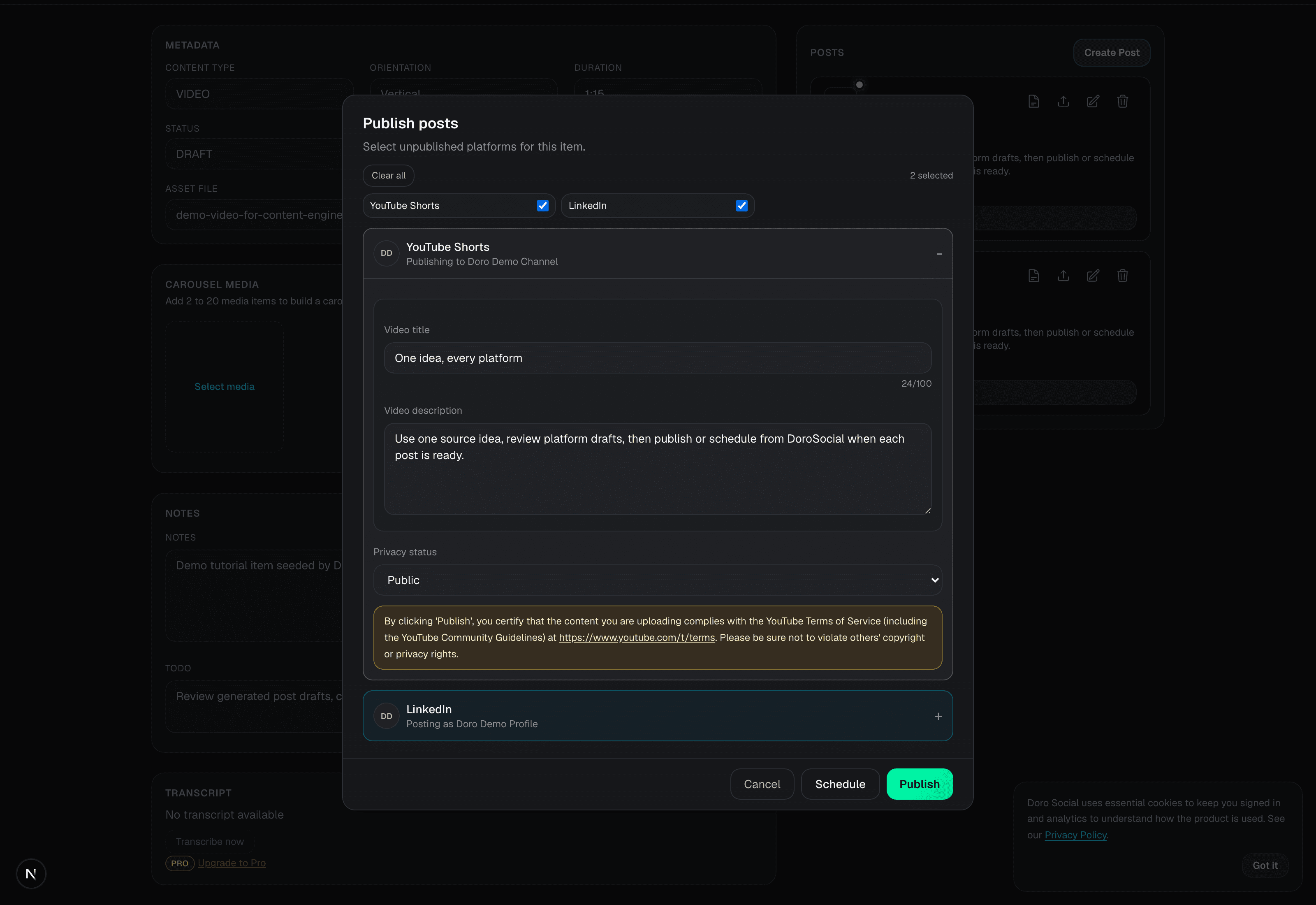
Before publishing or scheduling, review the settings for each selected platform. Some platforms need title, description, visibility, target account, disclosures, or other platform-specific fields before the action is available.
If a button is disabled, a selected platform usually still needs a required setting, a valid connected account, or available source media.
Step 4
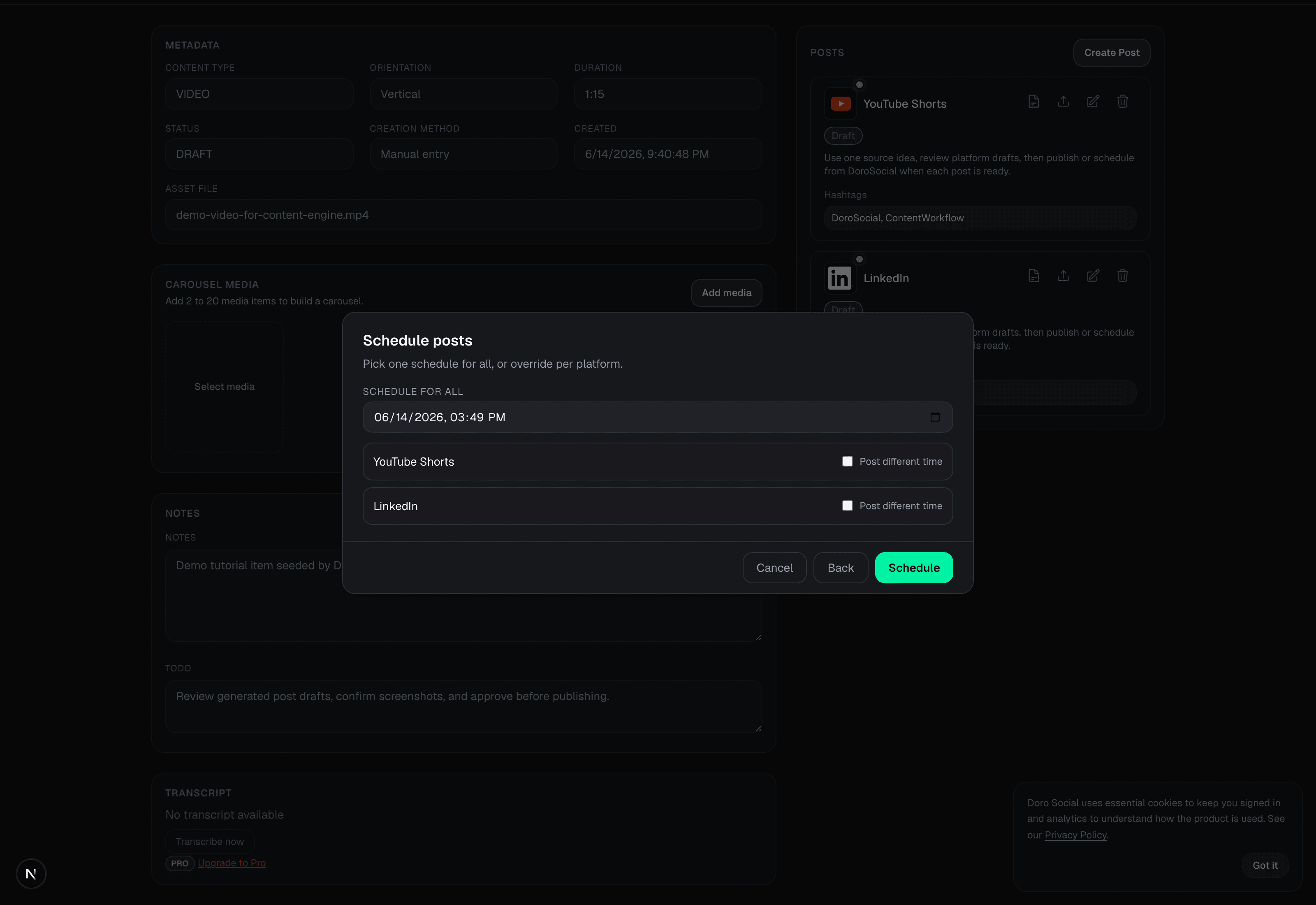
Click Schedule when you want DoroSocial to publish later. By default, one scheduled time applies to every selected platform.
Step 5
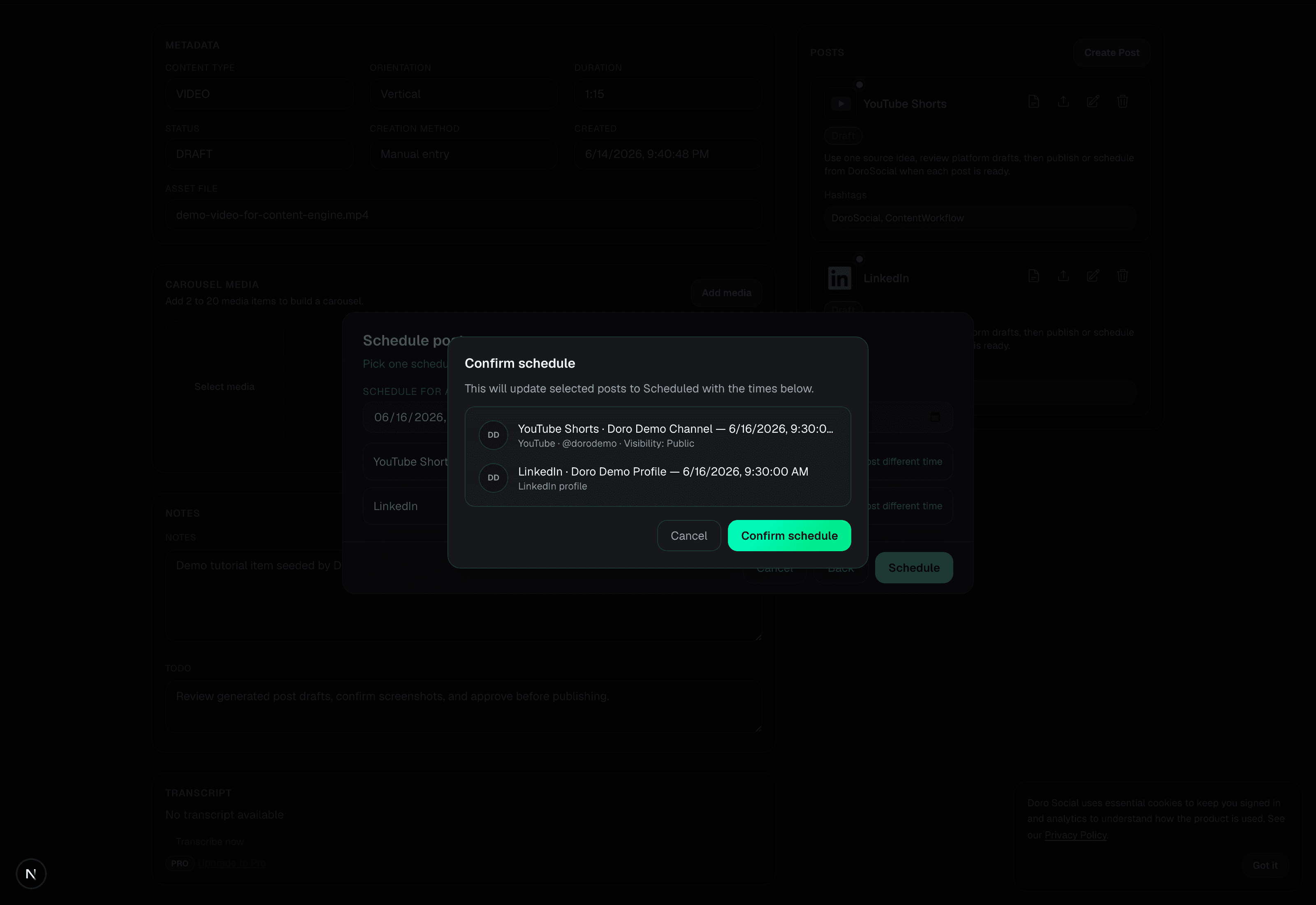
After choosing the time, DoroSocial shows a confirmation list with the platform, target account, and scheduled time. Confirm only after the list matches what you expect.
Important notes
Video posts need the source media file at publish time. If DoroSocial says the source media is missing or expired, re-upload the source before publishing or scheduling.
Each selected platform needs a valid connected account. Some platforms also require a target page, channel, board, profile, or visibility setting.
Select all includes unpublished platform drafts for the item. Already published or processing posts are not treated as normal draft targets.
Choose a TikTok account and privacy level before scheduling. If TikTok requires a disclosure or cannot post the selected video, DoroSocial explains what to change.
Questions
Yes. Click the publish icon on that platform draft and leave only that draft selected in the modal.
Yes. Use Select all in the publish modal to include every unpublished platform draft for the content item.
Yes. In the schedule step, turn on Post different time for a platform when that platform should use a different time from the shared schedule.
No. Scheduling saves the platform post as scheduled. DoroSocial publishes later at the selected time when the platform connection and source media are still valid.
Yes. Choose a TikTok account and privacy level, complete any required TikTok disclosure settings, then schedule it like any other platform post.
Next step
After a post is published or scheduled, check the post status in the Posts panel or dashboard list.