
Option 1
Create directly from the dashboard
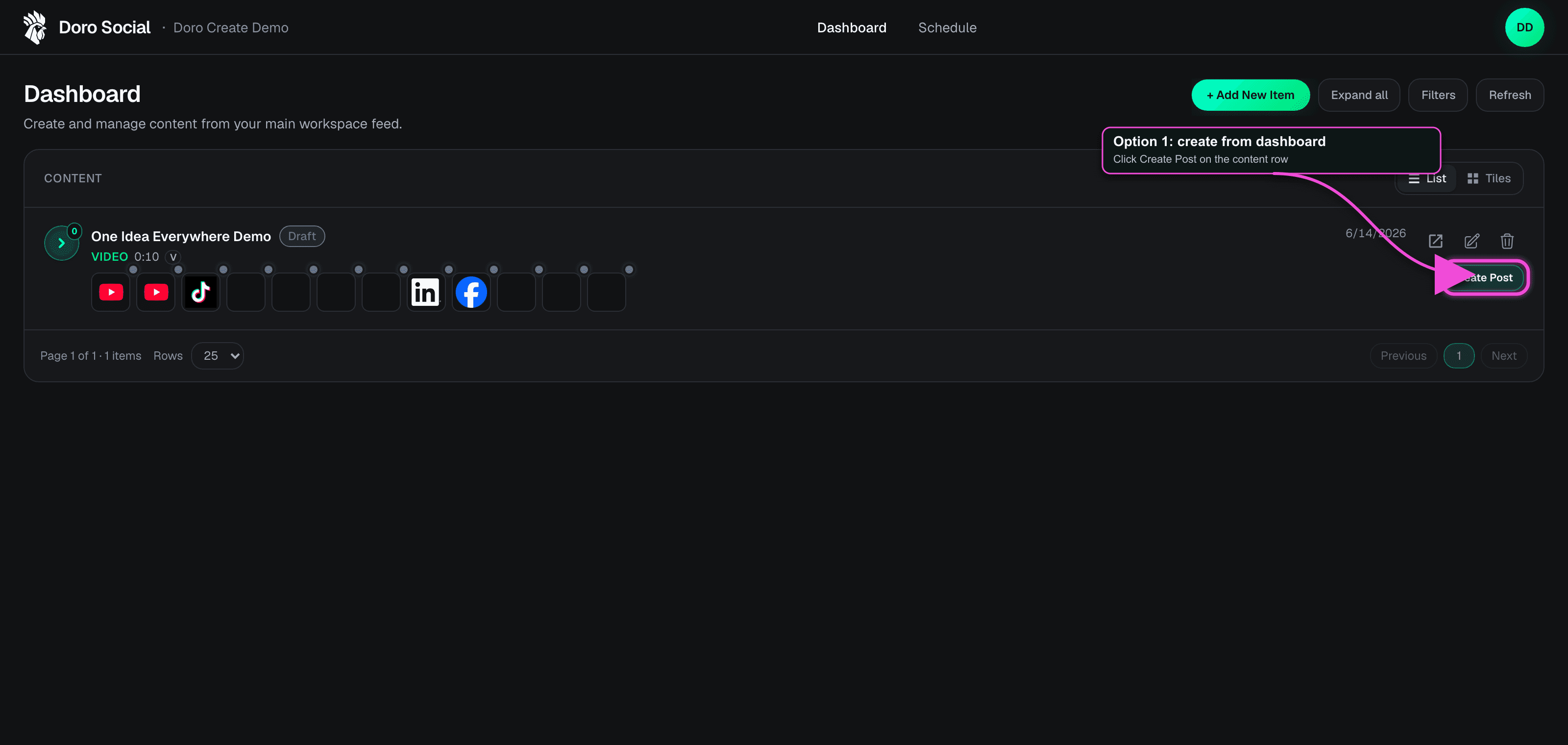
If you already know which content item needs posts, click Create Posts on the dashboard row. This opens the AI-assisted or manual creation flow without opening the item detail page first.
Platform post tutorial
Turn a saved content item into draft posts for the platforms where you want to publish. You can use AI-assisted generation when your plan supports it, or create each platform post manually.
The screenshots use YouTube Shorts and LinkedIn as examples, but the Create Post flow is the same pattern for supported destinations such as TikTok, Instagram Reels, Facebook Page posts, Threads, Bluesky, LinkedIn, YouTube Shorts, and X when your plan and connected accounts allow them.
Start options
You do not have to use one exact entry point. Create directly from the dashboard when you already know which item needs posts, or open the item detail page first when you want to review the source media, transcript, notes, and existing platform drafts.
Option 1
If you already know which content item needs posts, click Create Posts on the dashboard row. This opens the AI-assisted or manual creation flow without opening the item detail page first.
Option 2, step 1
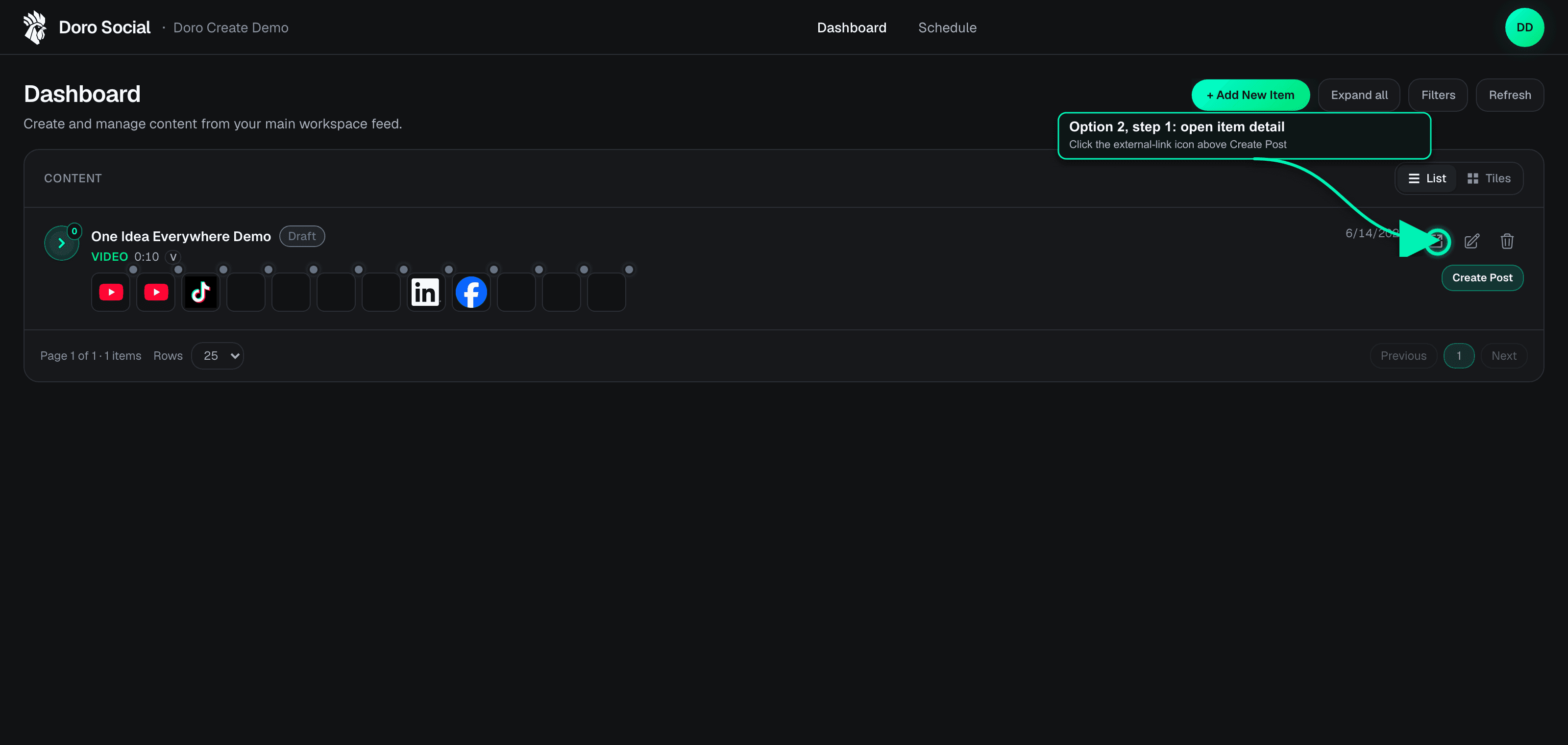
If you want to review the source content before creating platform posts, click the external-link icon on the dashboard row. That opens the content item detail page.
Option 2, step 2
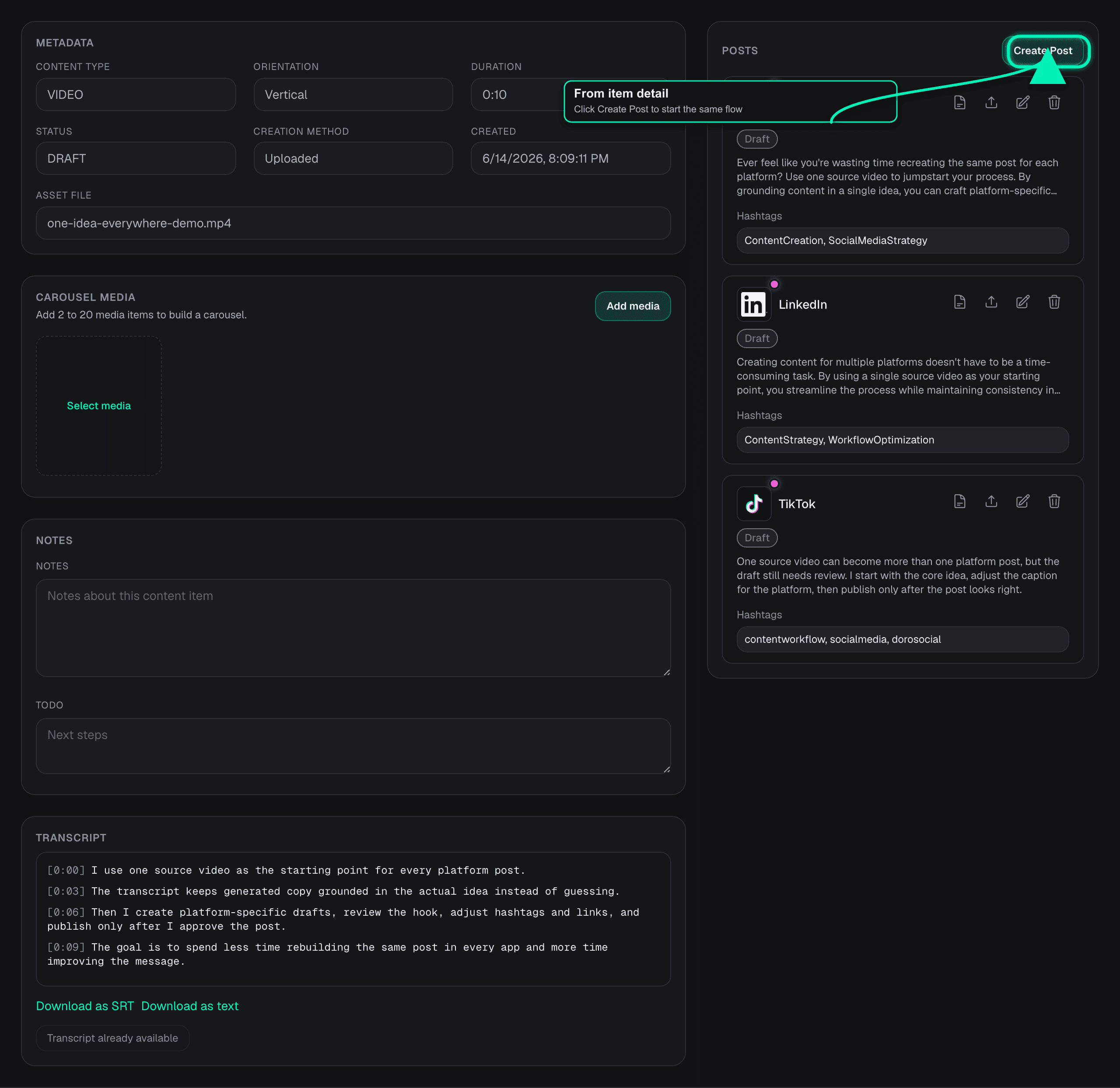
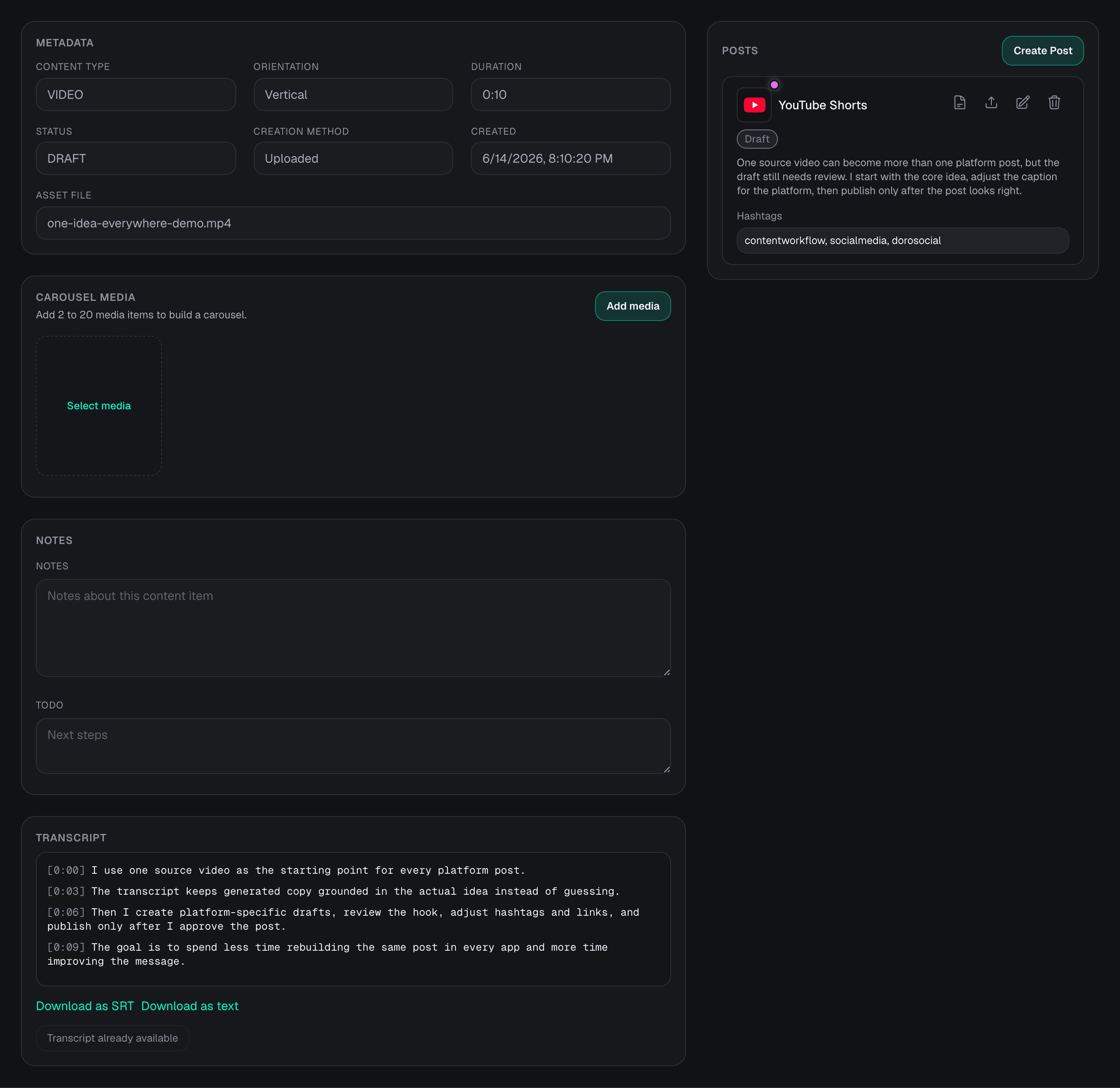
After the item detail page opens, click Create Posts in the Posts panel. The same AI-assisted and manual options appear after this step.
Start from a content item
Create platform posts after your source content exists in the workspace.
Two creation paths
Choose AI-assisted creation for transcript-based drafts, or manual creation when you want to write one post yourself.
Drafts stay safe
Creating a platform post does not publish it. Review, edit, schedule, or publish only when the draft is ready.
Which path should you use?
This tutorial starts with the AI-assisted path because it is the fastest way to create multiple platform drafts from a transcript. Free users, or anyone who wants to write the copy themselves, can jump to the manual path.
AI-assisted creation
Best for turning transcript text into several platform-specific draft options in one workflow. Use it when the account has AI generation access and credits.
Manual creation
Best for writing one platform post yourself. Use it for Free accounts, quick edits, or posts where you already know the exact caption you want.
Plan note for X
X publishing is Pro-only because X API access has a direct platform cost. Pro users can connect and post to X without spending AI credits for the act of posting; AI credits are only used for AI work such as transcription and generation.
AI-assisted path
AI-assisted creation uses the saved transcript as the source. It is useful when you want platform-specific drafts quickly, but the drafts still need human review.
AI step 1
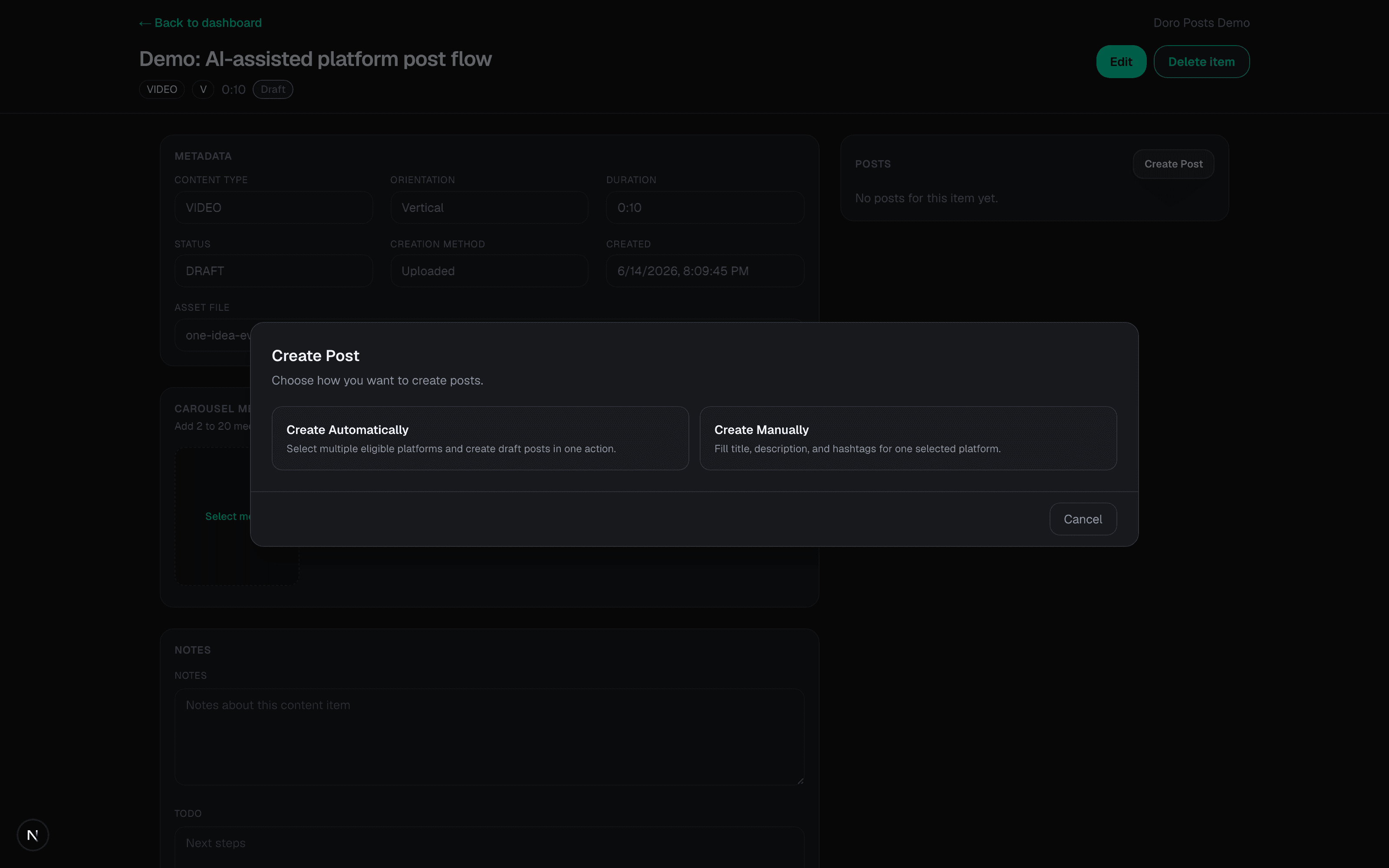
Open a content item and click Create Posts. DoroSocial asks whether you want to create posts automatically or manually.
Prefer to write the post yourself? Jump to manual creation.
AI step 2
Use Create Automatically when a transcript is available and you want DoroSocial to prepare draft copy for multiple eligible platforms at once. Add voice guidance if you want a specific tone, audience, or call to action.
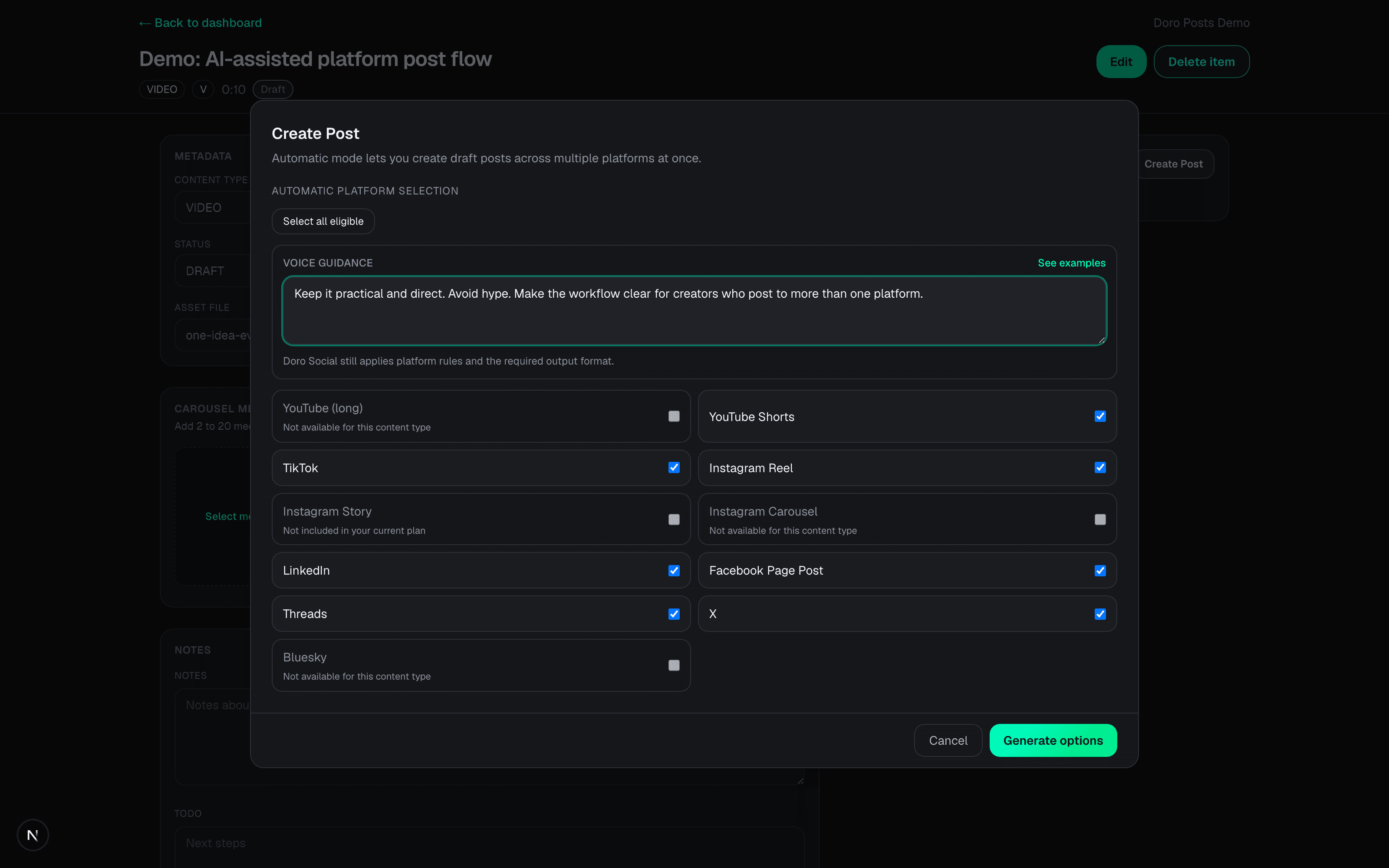
AI step 3
Generate options, then review the choices before creating posts. DoroSocial keeps the AI output as draft copy so you can choose what becomes a platform post. Some platforms and content types use both a title and caption, while others only need caption text. Automatic generation includes a title when the selected destination supports one.
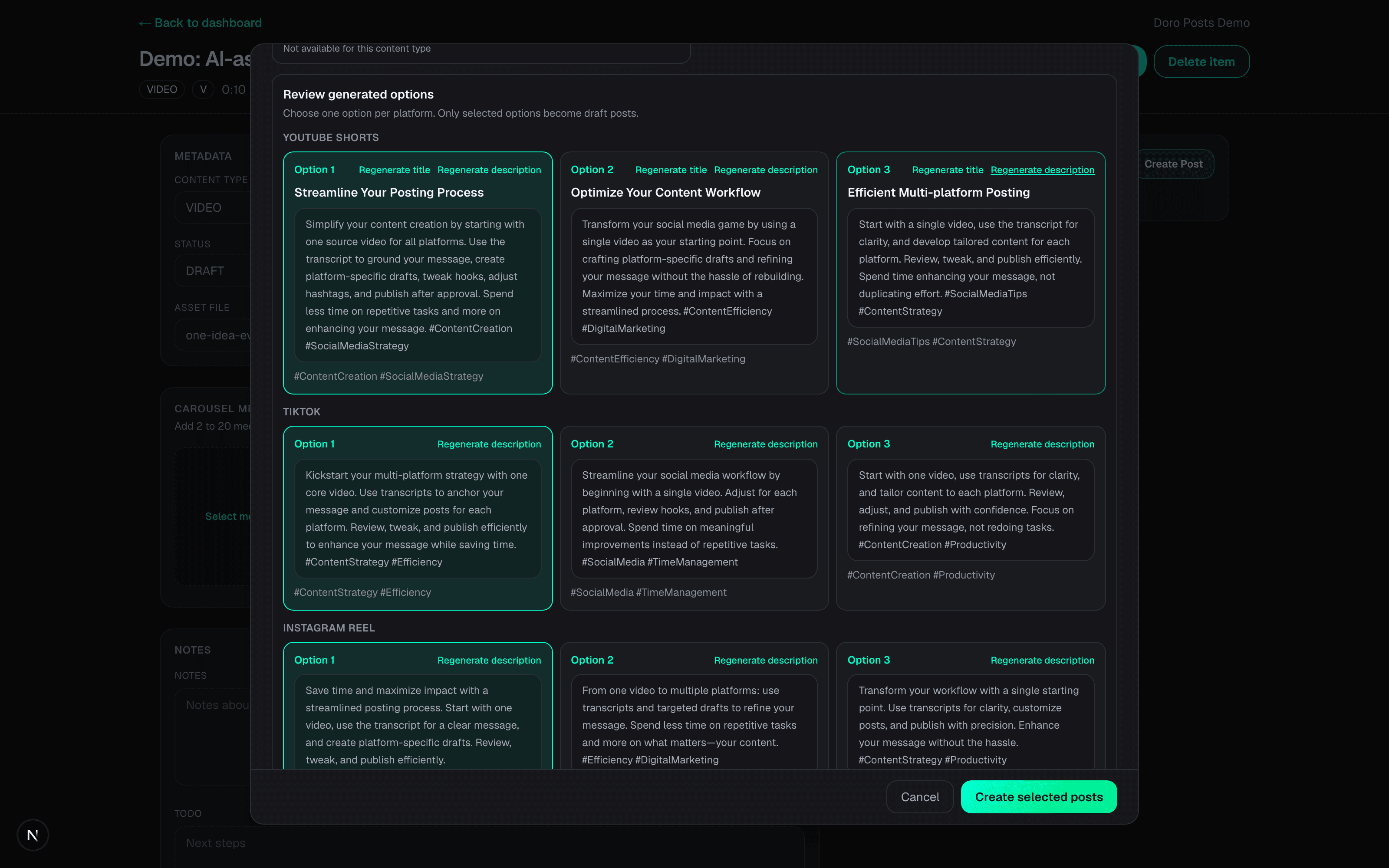
AI step 4
Click Create selected posts after choosing the options you want to keep. The new platform posts appear in the Posts panel as drafts with fuchsia status dots.
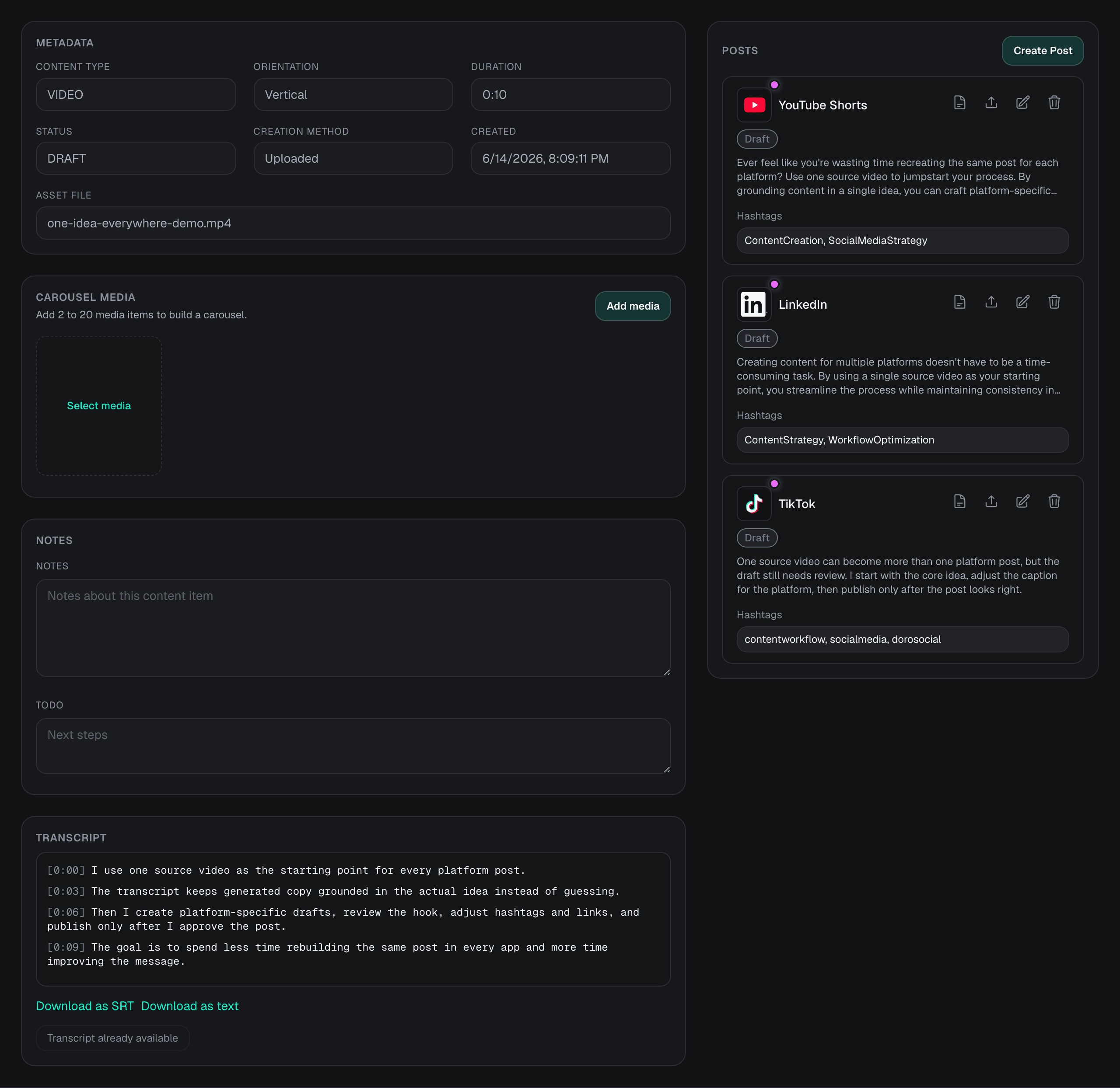
Manual path
Manual creation is available when you want to write directly, when AI credits are not available, or when you only need one draft for one platform.
Manual step 1
Use Create Manually when you want full control, when you only need one platform post, or when the account does not have AI credits. Free users can still create manual platform posts.
Want to generate drafts from the transcript instead? Jump back to AI-assisted creation.
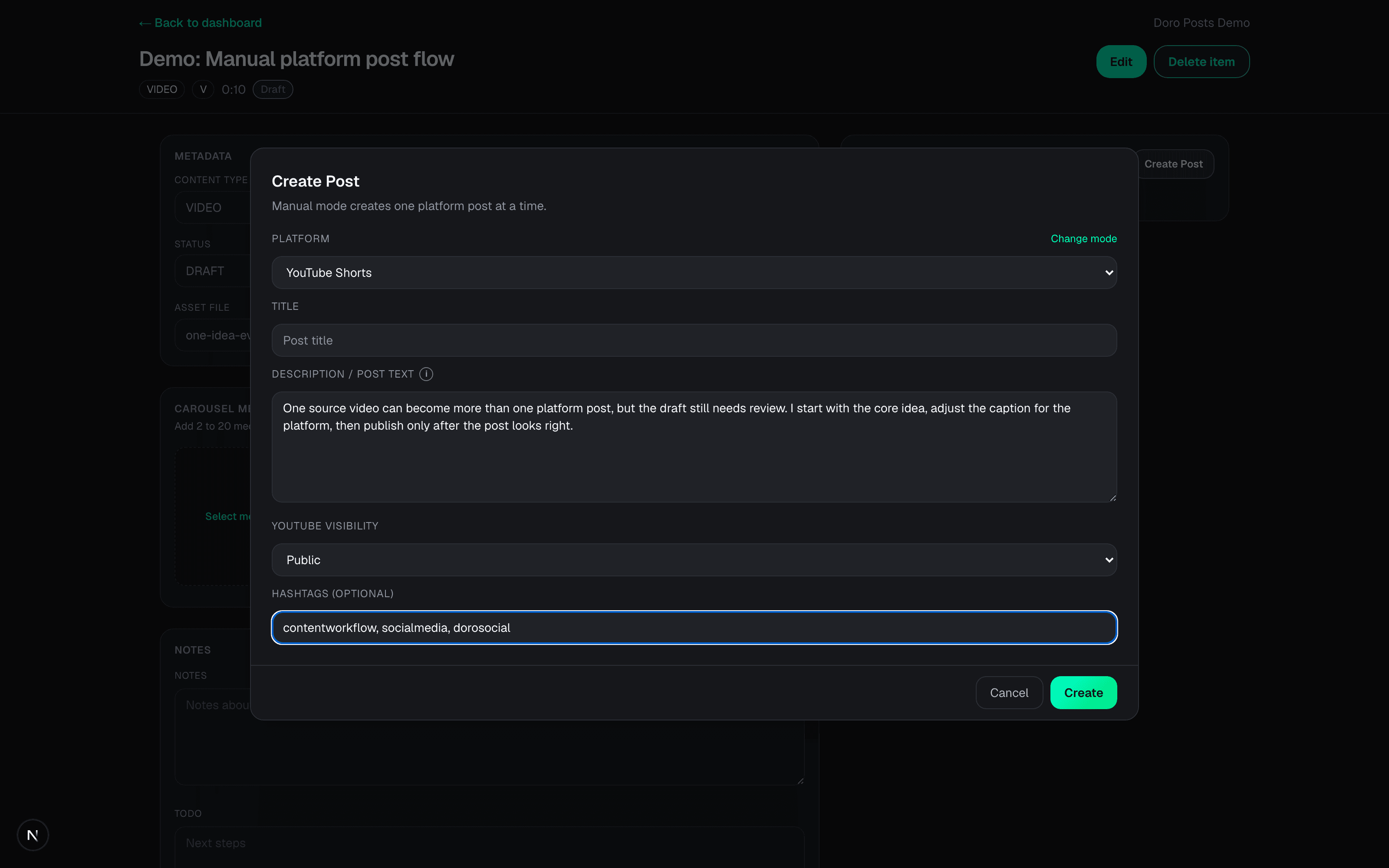
Manual step 2
After creating the post, review the title, post text, hashtags, platform, and status. Nothing is published just because the draft exists.
If automatic creation is unavailable, confirm the content item has transcript text and that your plan includes AI generation credits.
If a platform is disabled, it may not support the content type, orientation, plan, or media state for that item.
If a draft does not appear after creation, refresh the content item and check the Posts panel on the right side of the page.
Questions
No. AI-assisted creation requires plan access, transcript text, and available AI credits, but manual platform post creation is available without AI generation.
No. Creating a platform post creates a draft. You still need to review, edit, schedule, or publish the draft yourself.
A platform can be disabled when the content type, orientation, plan, connected account, or media state does not match that platform's publishing requirements.
Use AI-assisted creation when a transcript is available and you want multiple platform-specific drafts quickly. Use manual creation when you want to write one post yourself or when AI is not available on the account.
Next step
After you create platform drafts, open each post to edit, schedule, or publish it.