
Create content
Upload a video or image in DoroSocial
Upload source media when you want DoroSocial to keep the file, metadata, transcript options, and future platform drafts together in one content item.
Quick answer
Click Add Content, choose a video, image, or multi-file carousel upload, review the auto-filled details, then save. Uploading creates a draft item only; publishing happens later from platform posts.
What you can upload
Single video
Best when one source video will become one or more platform posts.
DoroSocial can detect duration and orientation, then use the video for transcription and video publishing.
Single image
Best when the source is one visual asset.
DoroSocial can detect orientation and save the item for manual or platform-specific post drafts.
Multi-file carousel
Best when a post needs a small sequence of media assets.
Carousel uploads require 2 to 35 files. Supported carousel file extensions are jpg, jpeg, png, gif, webp, mp4, and mov.
Upload and save the item
Step 1
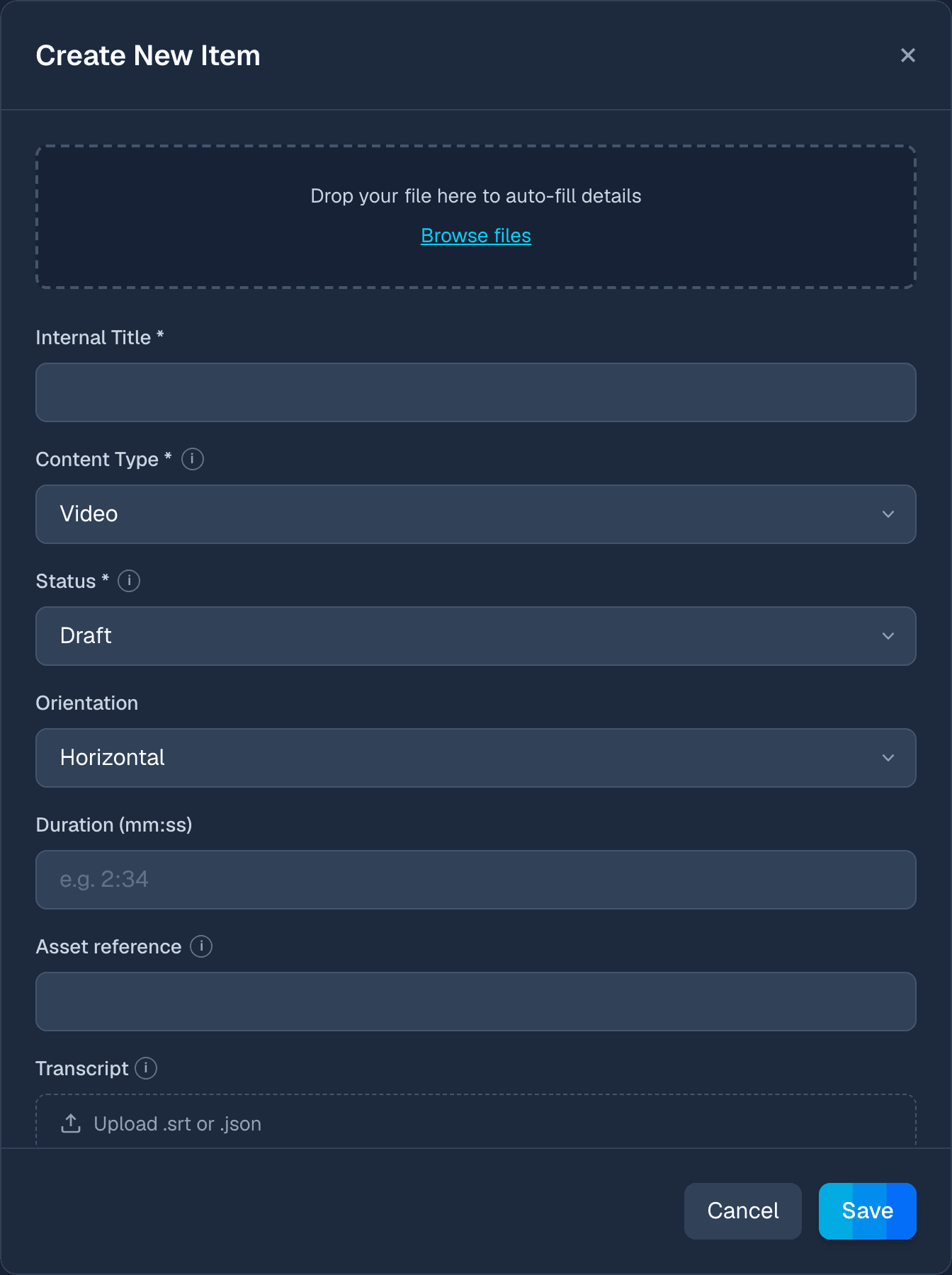
Open Add Content
From the dashboard, click Add Content. The upload area is at the top of the form, and the fields below it are the workspace details DoroSocial saves with the item.
Step 2
Choose your media
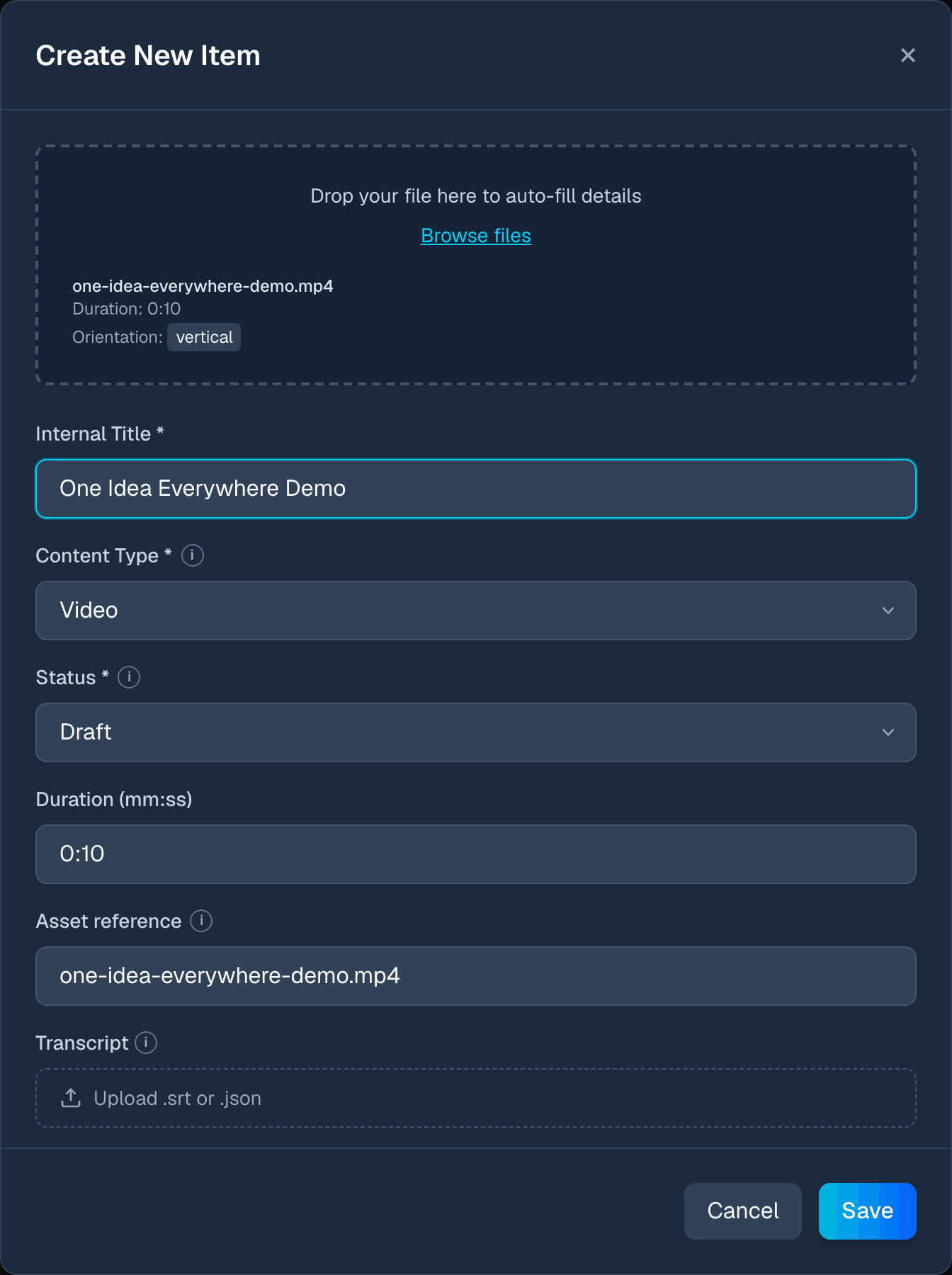
Drop a file into the upload area or browse from your computer. Single uploads can be video or image files. Multi-file uploads create carousel-style content when the files meet the carousel rules.
Step 3
Review the auto-filled details
DoroSocial can use the filename as the starting title and asset reference. For video and image uploads, it also detects orientation when available. For video, it can detect duration.
Step 4
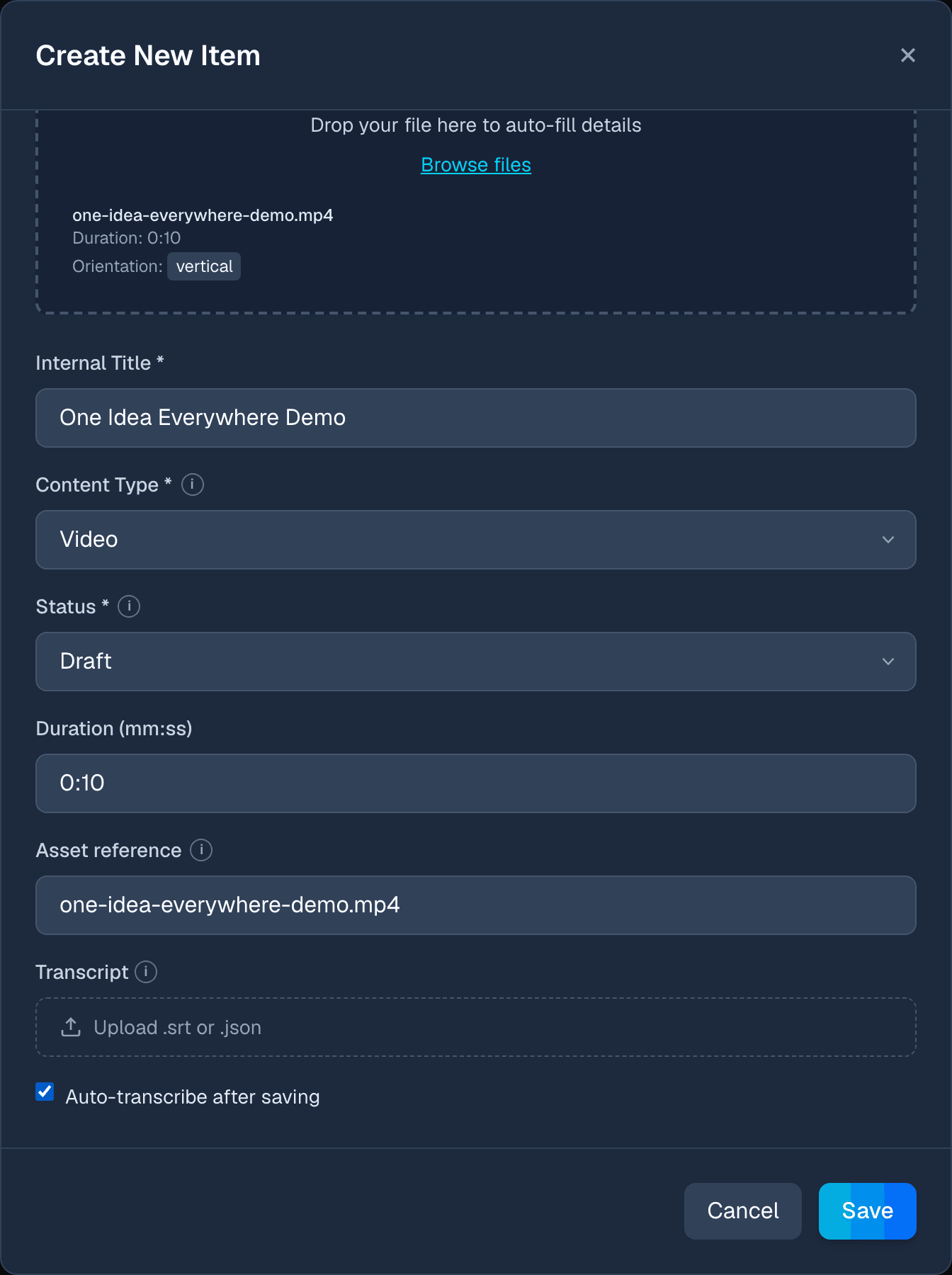
Add a transcript option for video
For video items, you can upload an existing transcript file or, when your account has access and credits, enable auto-transcribe after saving. Image-only items do not need transcript generation.
Step 5
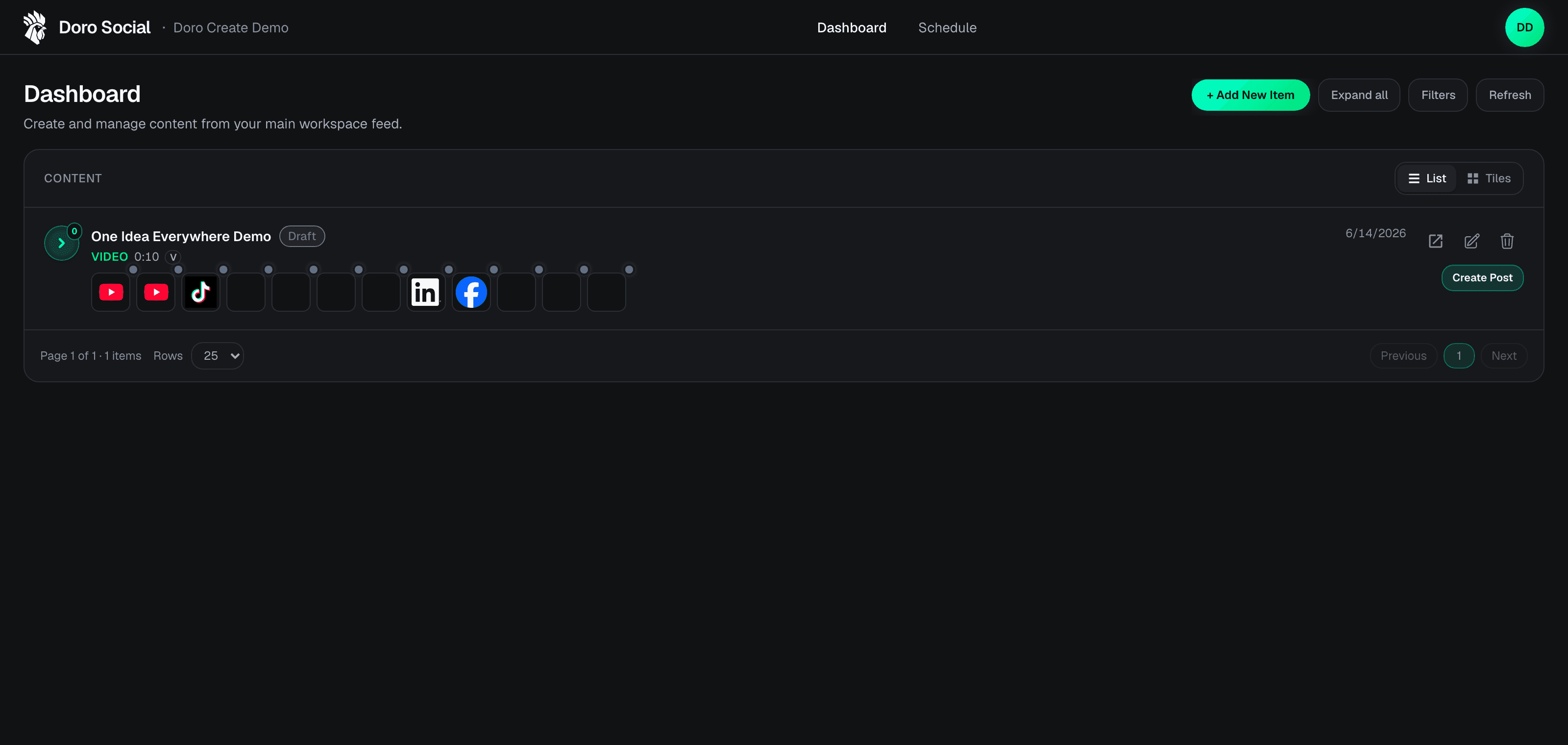
Save the item
Click Save and wait for the upload to finish. The saved item appears on the dashboard as a draft. Nothing is published just because you uploaded media.
Source media retention
DoroSocial keeps the content item, transcript, notes, and platform drafts even when source video storage expires. Current launch limits are 24 hours of source video retention for Free accounts and 30 days for Pro accounts.
If a source video expires before you publish, follow Re-upload expired source media.
Next steps
Common questions
Does uploading media publish it to social platforms?
No. Uploading media only creates a draft content item in DoroSocial. You still create platform posts, review them, and choose publish or schedule later.
Can I create an item without uploading media?
Yes. You can create a manual content item with a title, content type, status, and optional asset reference. This is useful for planning or organizing work before the final file is ready.
How long does DoroSocial keep uploaded source video?
Current launch limits are 24 hours for Free accounts and 30 days for Pro accounts. The content item, transcript, notes, and platform drafts remain, but expired source video may need to be uploaded again before preview, transcription, publishing, or scheduling.
Do image uploads use AI credits?
No. Uploading an image or video does not use AI credits by itself. AI credits are used by AI actions such as transcription or AI-assisted title and description generation.