
Step 1
Open your dashboard
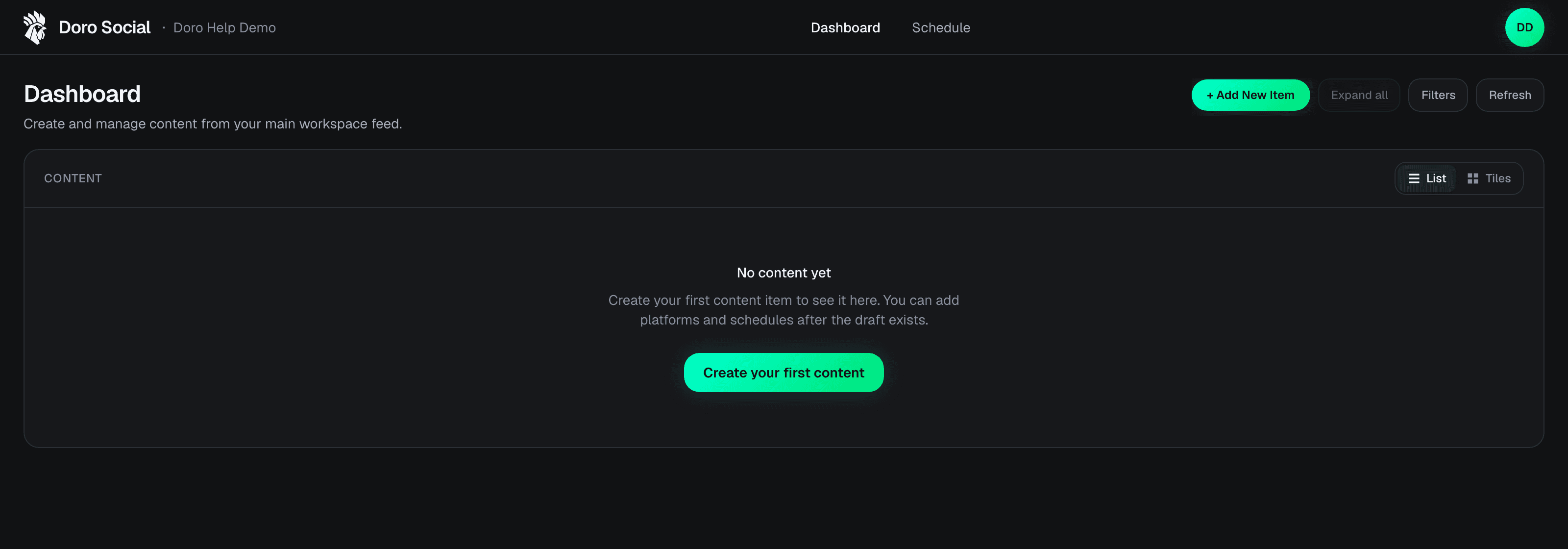
Log in to DoroSocial and start from the dashboard. This is your main workspace for content items, drafts, and publishing status.
Content workspace tutorial
Add a content item to your workspace so you can organize the source, prepare posts, and decide where it should be published later.
Before you start
Sign in to DoroSocial and open your dashboard.
Safe draft flow
Saving a content item only creates a draft in your workspace. Nothing is published until you choose a platform post and publish or schedule it.
Next step
After the item exists, create platform-specific posts for the channels where you want to publish.
Step 1
Log in to DoroSocial and start from the dashboard. This is your main workspace for content items, drafts, and publishing status.
Step 2
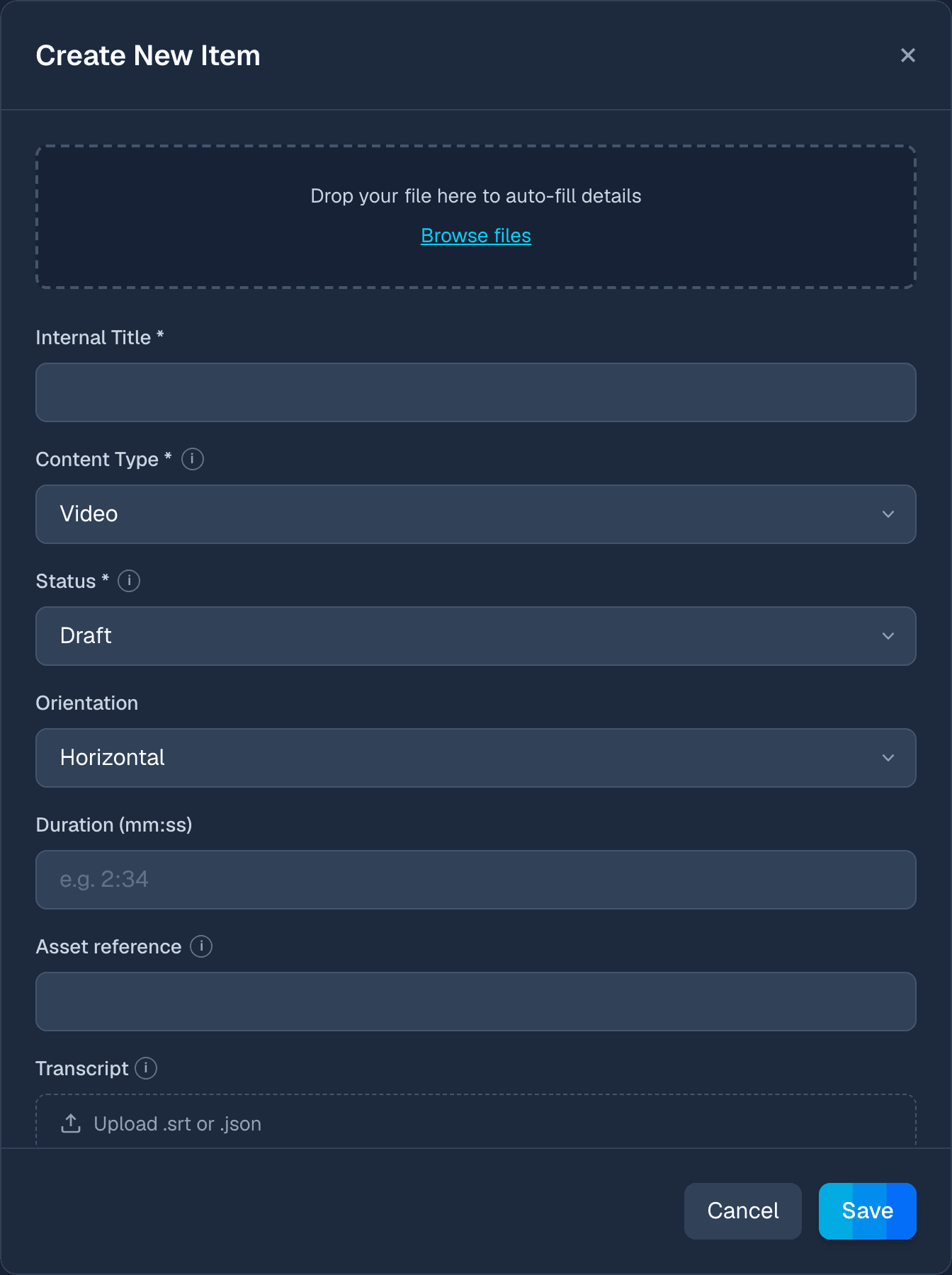
Click Add Content to open the create form. This is where you can upload source media or create a manual draft item.
Step 3
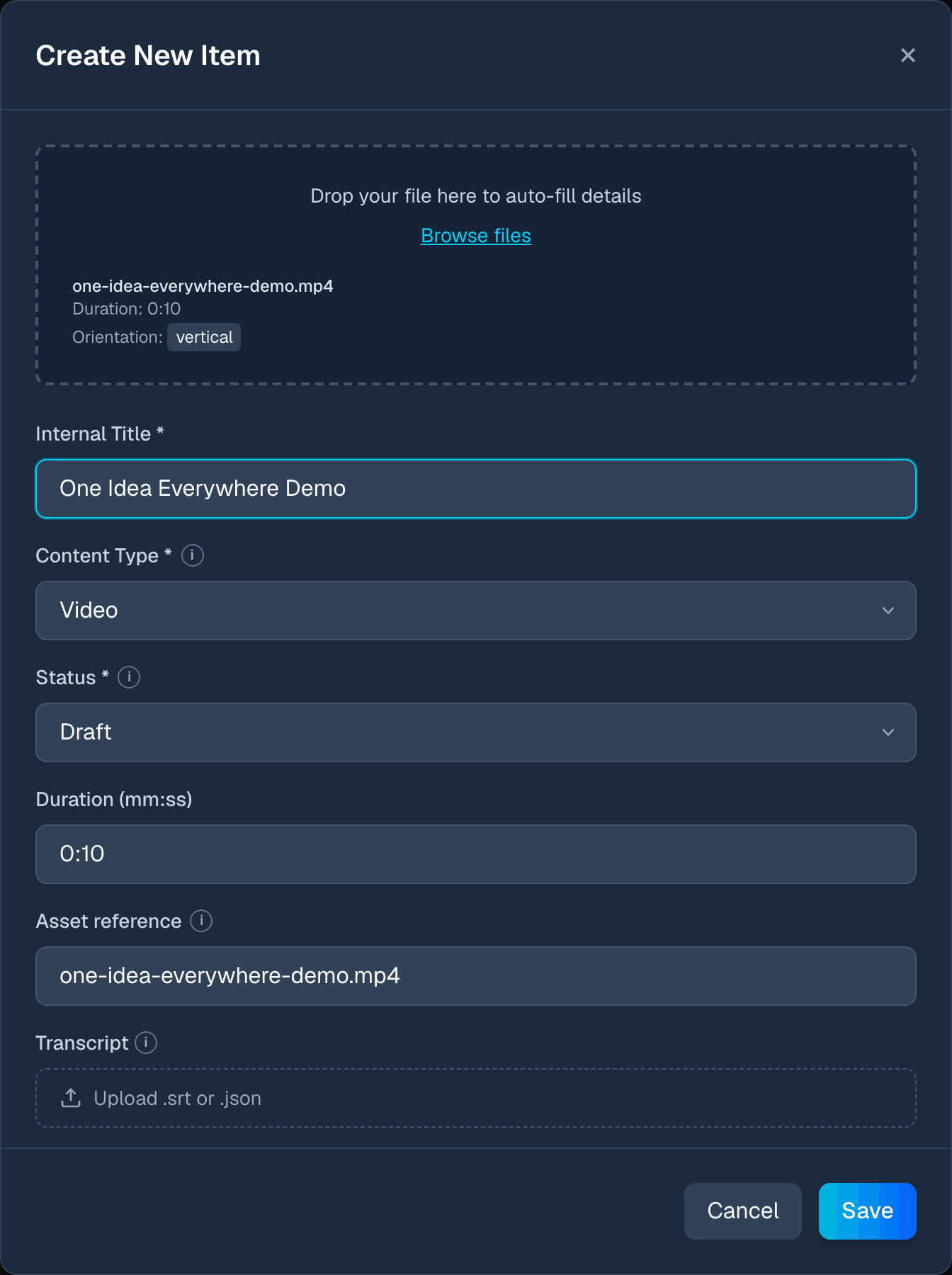
Choose a video, image, or multi-file carousel upload. DoroSocial reads media metadata when available, fills details such as duration and orientation for video, and uses the filename as a starting asset reference.
Step 4
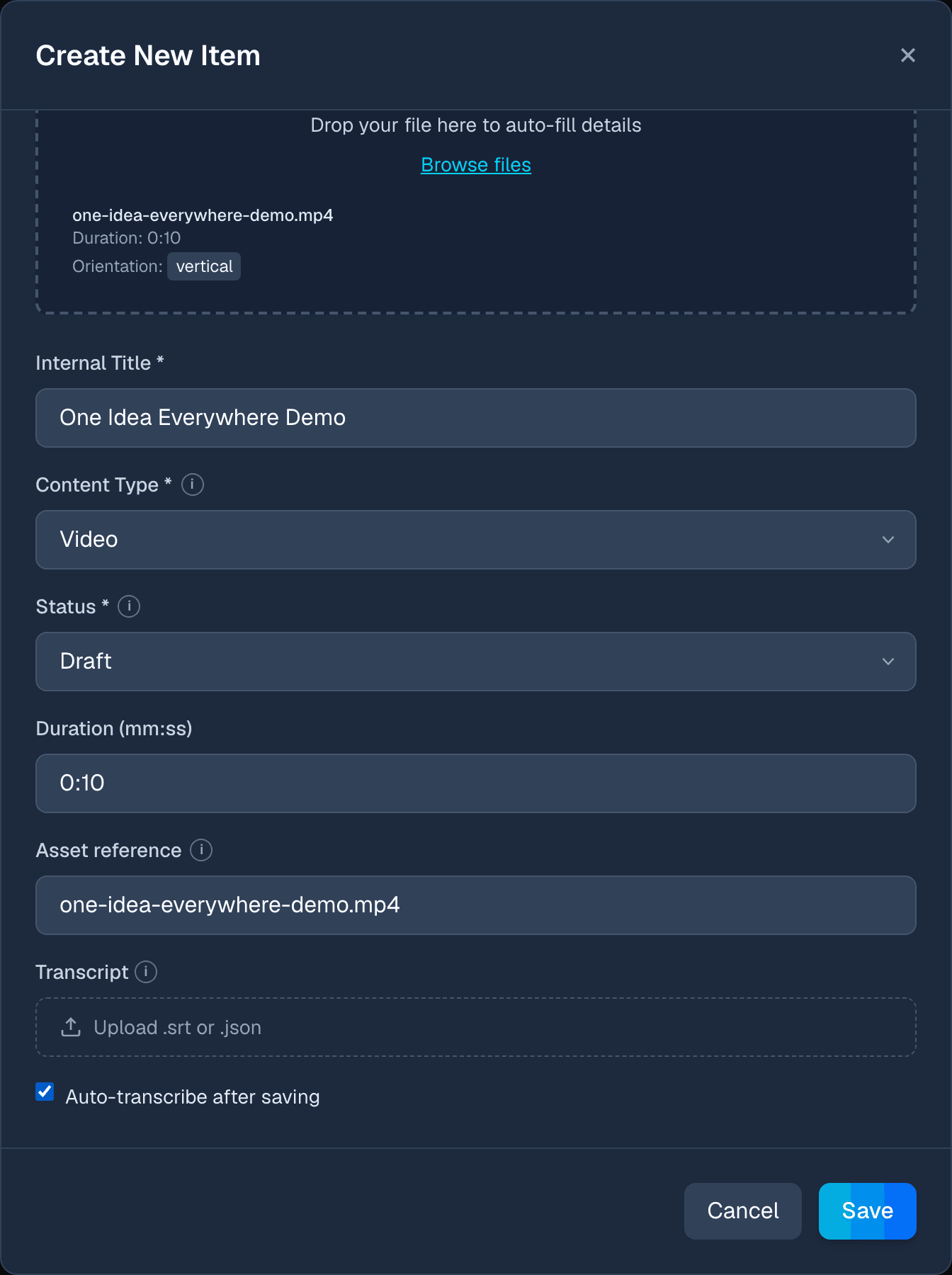
If you already have a transcript, upload an .srt or .json file. For video uploads, Pro or eligible users can turn on auto-transcribe so DoroSocial queues transcription during the save/upload flow and prepares transcript text for later title, caption, and post generation.
Step 5
Click Save and wait for the upload to finish. The item appears in your dashboard as a draft, ready for editing, AI generation, platform posts, scheduling, or publishing.
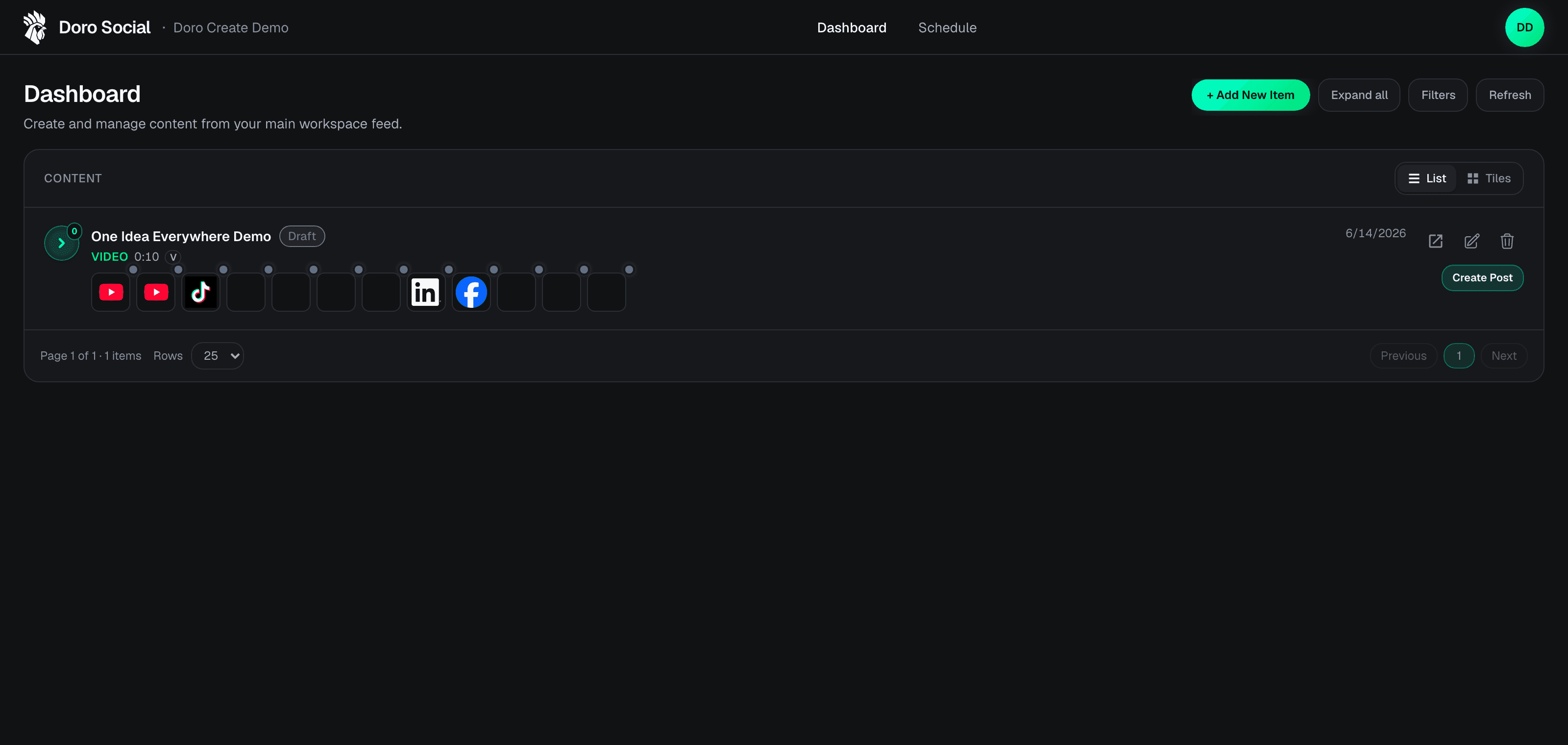
Dashboard guide
The platform icons under a content item show where posts can be created. The small dot on each icon shows the post status for that specific platform.
Gray
No post exists yet for that platform.
Fuchsia
A draft platform post exists and can be edited.
Blue
The platform post is scheduled.
Amber
Publishing is queued or processing.
Green
The platform post is published.
Red
Publishing failed or needs attention.
The item status badge, such as Draft or Ready to Post, describes the overall content item. The platform dot describes the post status for one destination.
If you do not see Add Content, refresh the dashboard and confirm you are signed in to the correct workspace.
If the item does not appear after saving, check filters on the dashboard. A draft may be hidden by the current content or status filter.
Next tutorial
Once your first content item exists, create platform-specific posts with AI-assisted generation when your plan supports it, or write posts manually.