Solo founder content calendar

A content calendar for solo founders: plan a week you can publish.

A useful founder content calendar records the source idea, channel, draft, intended publish time, and status for each post. Start with three useful posts on one or two channels. Doro Social helps you keep their source material, platform drafts, scheduling, and publishing status together.

An example week: one product update, three useful posts

Suppose you are improving onboarding in your own product. You already have a short demo, a question customers ask, and a lesson from building the change. Use that material instead of inventing five unrelated topics. Adapt this illustrative plan to your own product.

Monday · explain the change

Source
A short product demo and release notes
Channel
LinkedIn personal profile
Draft brief
Lead with the problem the change solves. Explain one concrete improvement and invite readers to try it.
Before scheduling
Verify the feature is available and the link points to the correct release.
Wednesday · answer a question

Source
One recurring onboarding question
Channel
LinkedIn personal profile
Draft brief
Write a short answer with the steps a new user needs. Keep private customer details out of the post.
Before scheduling
Check the instructions against the product and remove assumptions a first-time user would not know.

Friday · share a lesson

Source
A note about a design choice you changed
Channel
Bluesky
Draft brief
Describe the original assumption, what you changed, and one lesson another founder could use.
Before scheduling
Review the copy for this channel rather than pasting the longer LinkedIn draft unchanged.

Choose publish times you can support and review afterward. The days above are an example cadence, not a claim about the best times to post. If only one post is ready, publish one useful post and keep the other ideas as drafts.

Turn the plan into scheduled posts in Doro Social

  1. Create a source content item. Keep the demo, notes, links, or text with the idea. Reuse the same source item when several platform versions share that source.
  2. Create a platform draft. Choose a connected channel and write the post manually. Users on any plan can use available AI credits for transcription and draft generation, then edit the result.
  3. Review the actual post. Check the caption, title where required, media, link, target account, and any platform-specific fields.
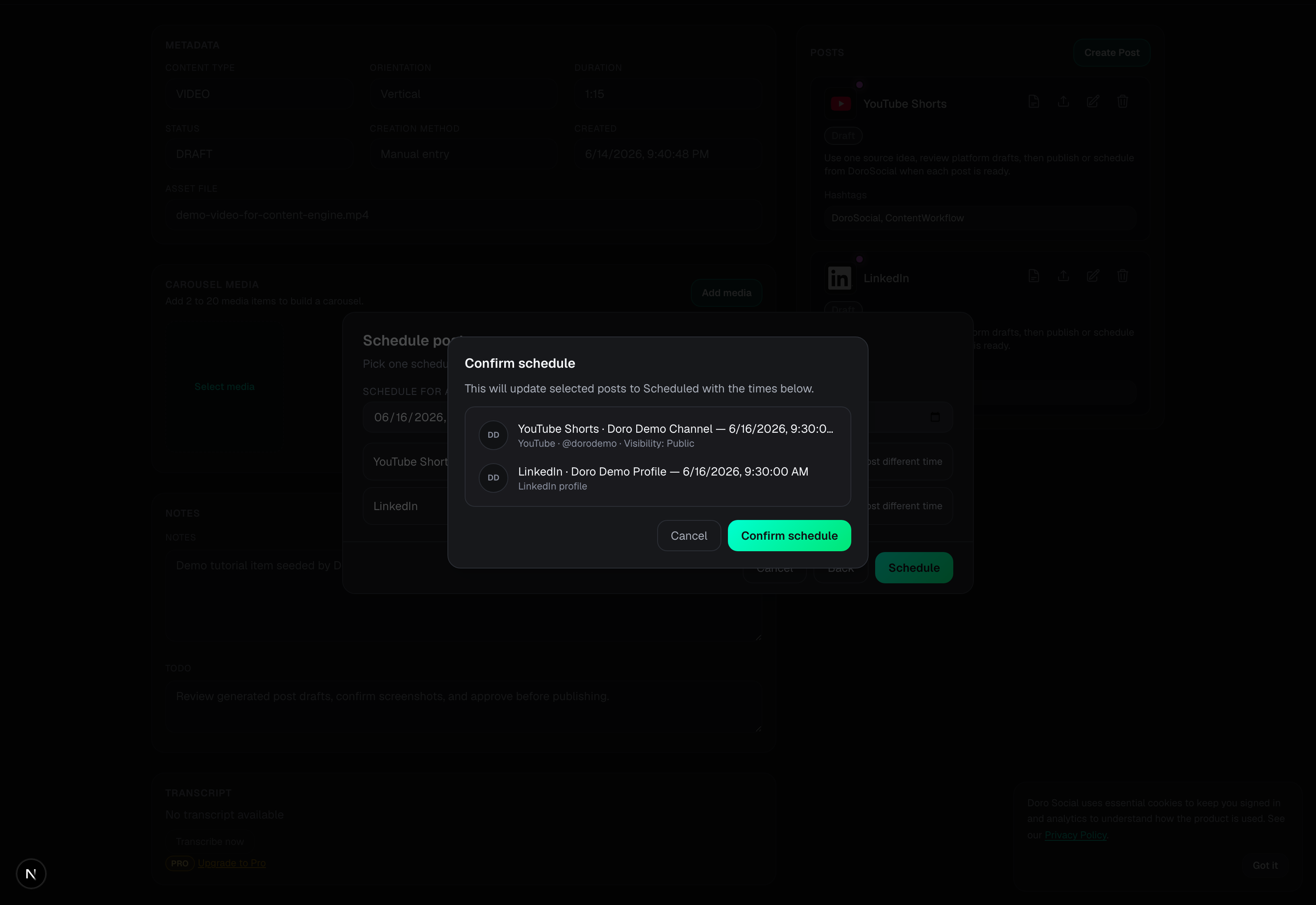
  4. Open the publish action and choose Schedule. Select a supported future time, then review the platform, account, and time in the confirmation before saving.
  5. Check the publishing status. A scheduled post is not yet a published post. After its time passes, check for success or an error before counting it as shipped.
Doro Social demo account showing the Confirm schedule dialog with platform accounts and scheduled times.
From the Doro Social publishing tutorial: review the selected accounts and times before confirming. Open the image for a larger view; the demo dates are illustrative.
Follow the first-post tutorial

Plan the week; schedule within your plan limits

Free: prepare ahead, schedule close to publish time

Free supports one brand, up to three connected channels, and manual drafts. Its scheduling window is up to 24 hours ahead. You can prepare the example week as drafts, then schedule each ready post when it enters that window. AI transcription and draft generation use available AI credits. Free users can buy credits; Pro includes a monthly allowance.

Pro: schedule farther ahead with monthly AI credits

Pro supports up to three brands and scheduling up to 90 days ahead, subject to connected-account access and publishing limits. AI transcription and draft generation use credits. A longer schedule does not guarantee that every media file or account authorization will remain valid until publish time.

Source-video retention is separate from scheduling: one day on Free and 30 days on Pro. Keep your original file. If it expires before a scheduled post needs it, re-upload it and check the post before publishing. Daily posting limits and platform media requirements also apply.

When a spreadsheet is enough

A spreadsheet can be enough if you only need a list of ideas and are happy publishing manually in each social app. Doro Social fits when keeping the source, separate platform drafts, scheduled times, and failed or published status together would remove repeated work. Start with one real post before moving your full routine.

Review the queue, not just the empty slots

At the end of the week, check which posts published, which failed, and which drafts still need work. Keep unfinished ideas as drafts rather than scheduling them to fill a slot. For a failed post, check the account connection, original media, and error message before retrying.

Troubleshoot a failed post

Founder content calendar questions

Can I use the LinkedIn example for a company Page?

This example uses a connected LinkedIn personal profile. Before adapting it for a company Page, check whether LinkedIn Page connection is available in your workspace’s integration settings and whether you have the required Page access.

How do I bring the example week into my account?

Use the example as a planning guide. Create the source content items and platform drafts in your account, replace the sample topics with your own material, and review each post before scheduling it.

What if a post needs a feature available only in the social app?

Check that the connected platform supports the format and options you need before scheduling. If a required native feature is not available in Doro Social, finish that post in the social app and account for it when reviewing your weekly plan.

Turn one founder idea into a planned publishing workflow.

Start with one content item, choose the channels you can maintain, and schedule the posts that are ready.

Start free